Settings
How to change the settings (changing the profile picture; switching off the sound effects; password reset; deleting the account; logging out)
How to change the settings
Account setup, password reset, deleting an account, logging out
-
Open settings.
-
Click on "profile" icon below.
Figure 1. Profile tab 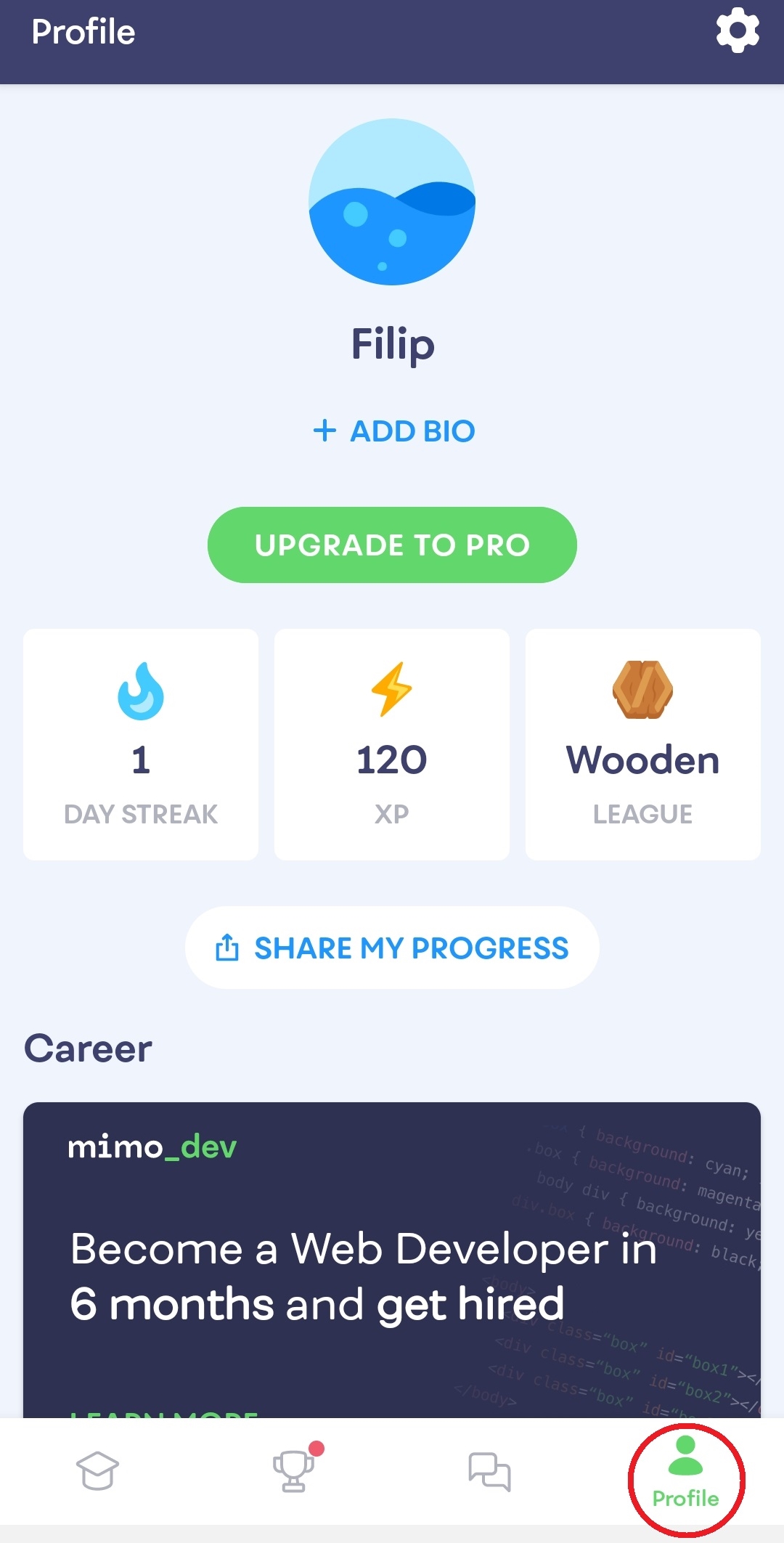
-
Click on "settings" icon in the upper right corner.
Figure 2. Settings icon .jpg)
-
Now you can change the settings.
Figure 3. Settings 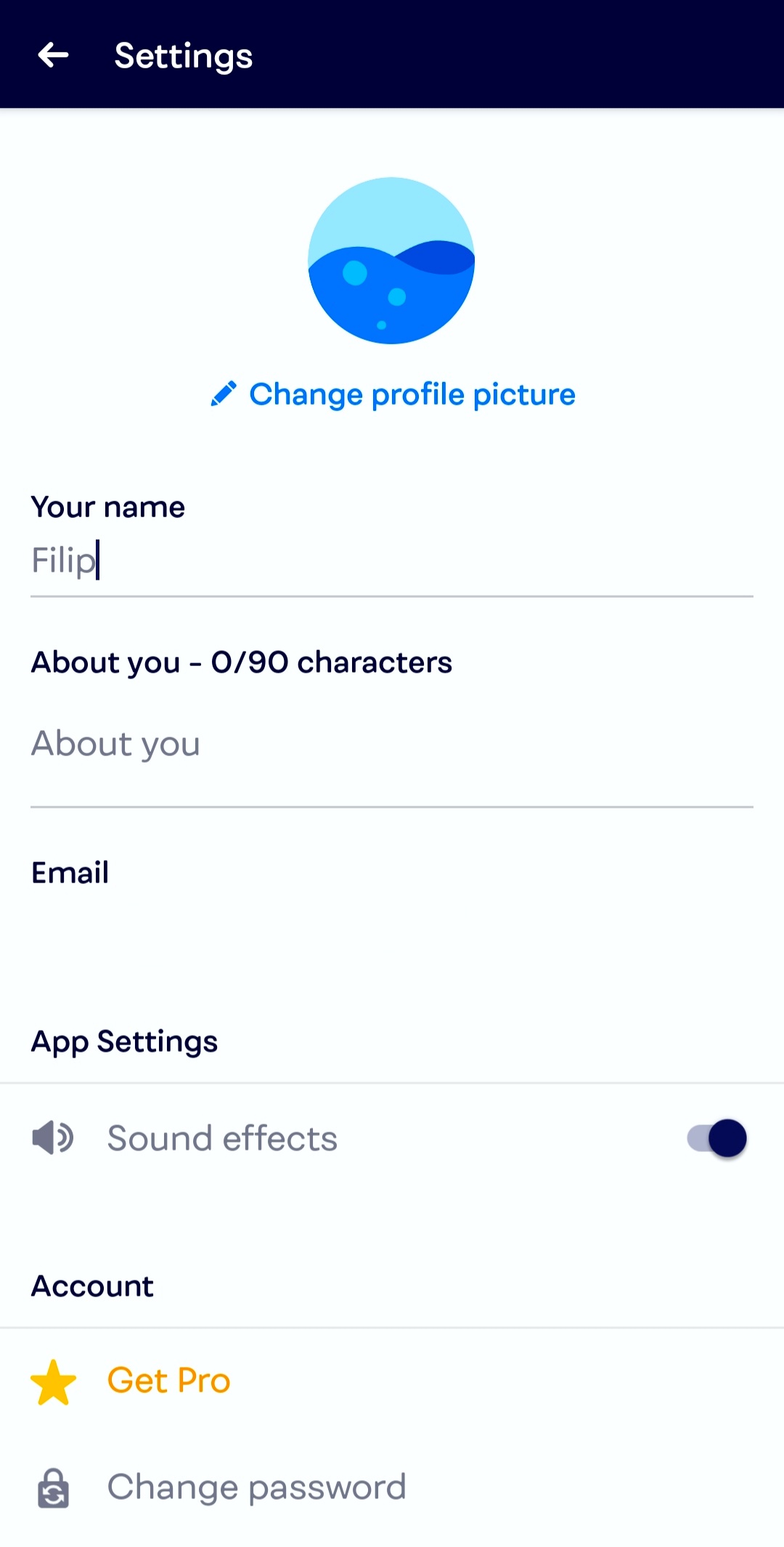
-
Click on "profile" icon below.
-
Change profile photo.
-
Click on "change profile picture".
Figure 4. Changing profile picture .jpg)
-
Select the source of your new photo.
Figure 5. Source of the picture 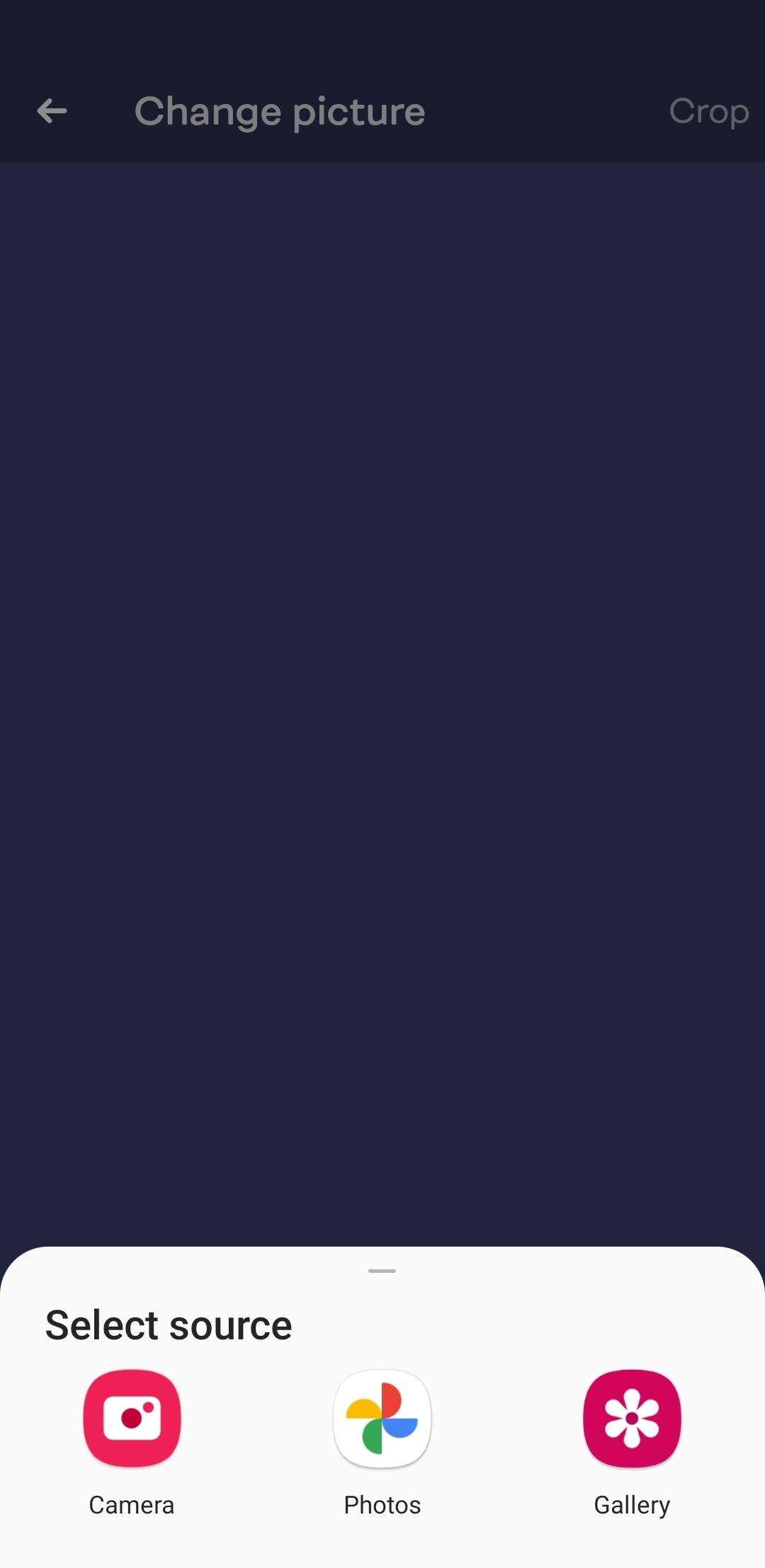
-
Adjust the photo.
Figure 6. Adjusting the picture 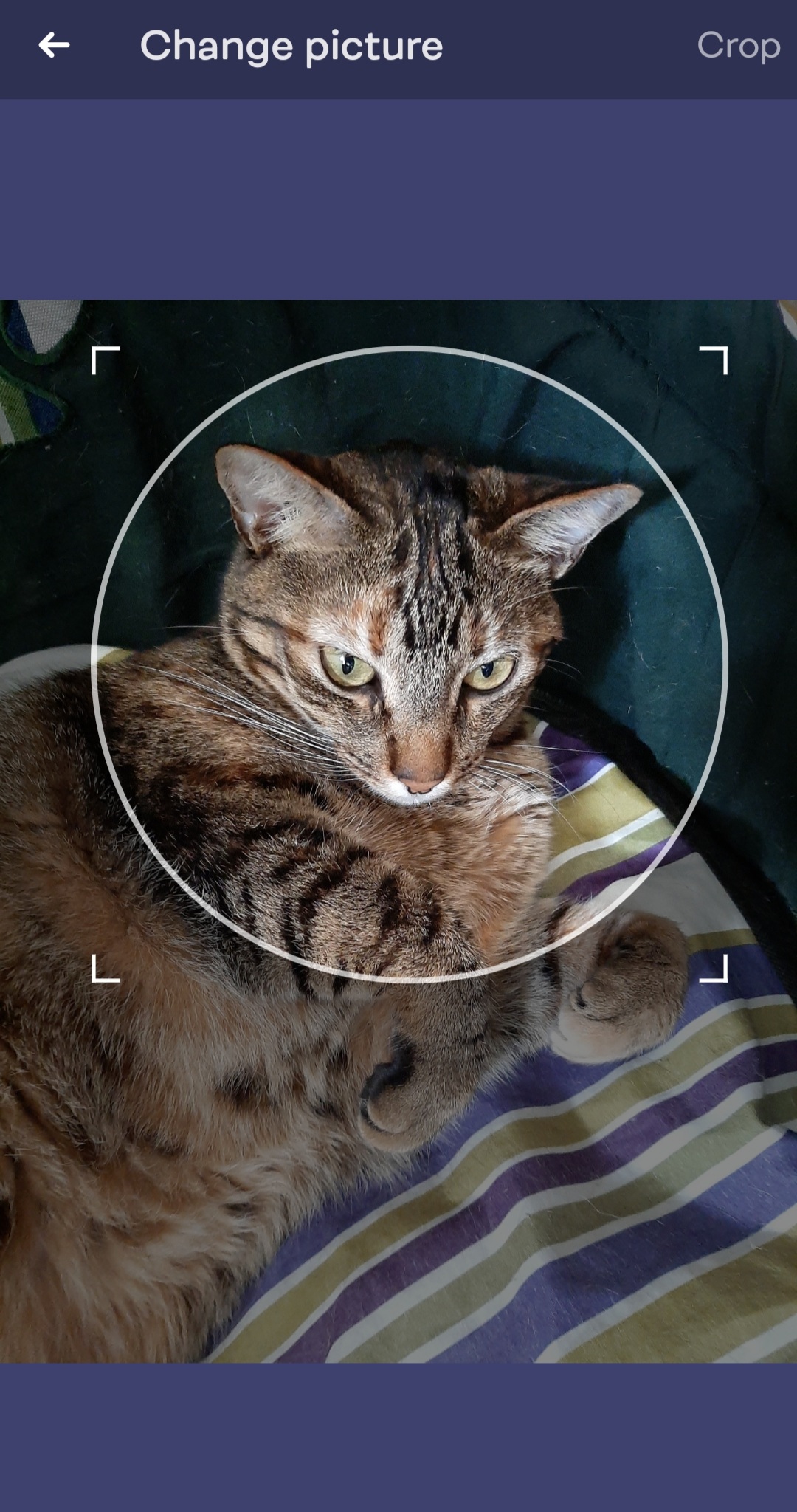
-
Now press on "crop" in the upper right corner.
Figure 7. Cropping the picture 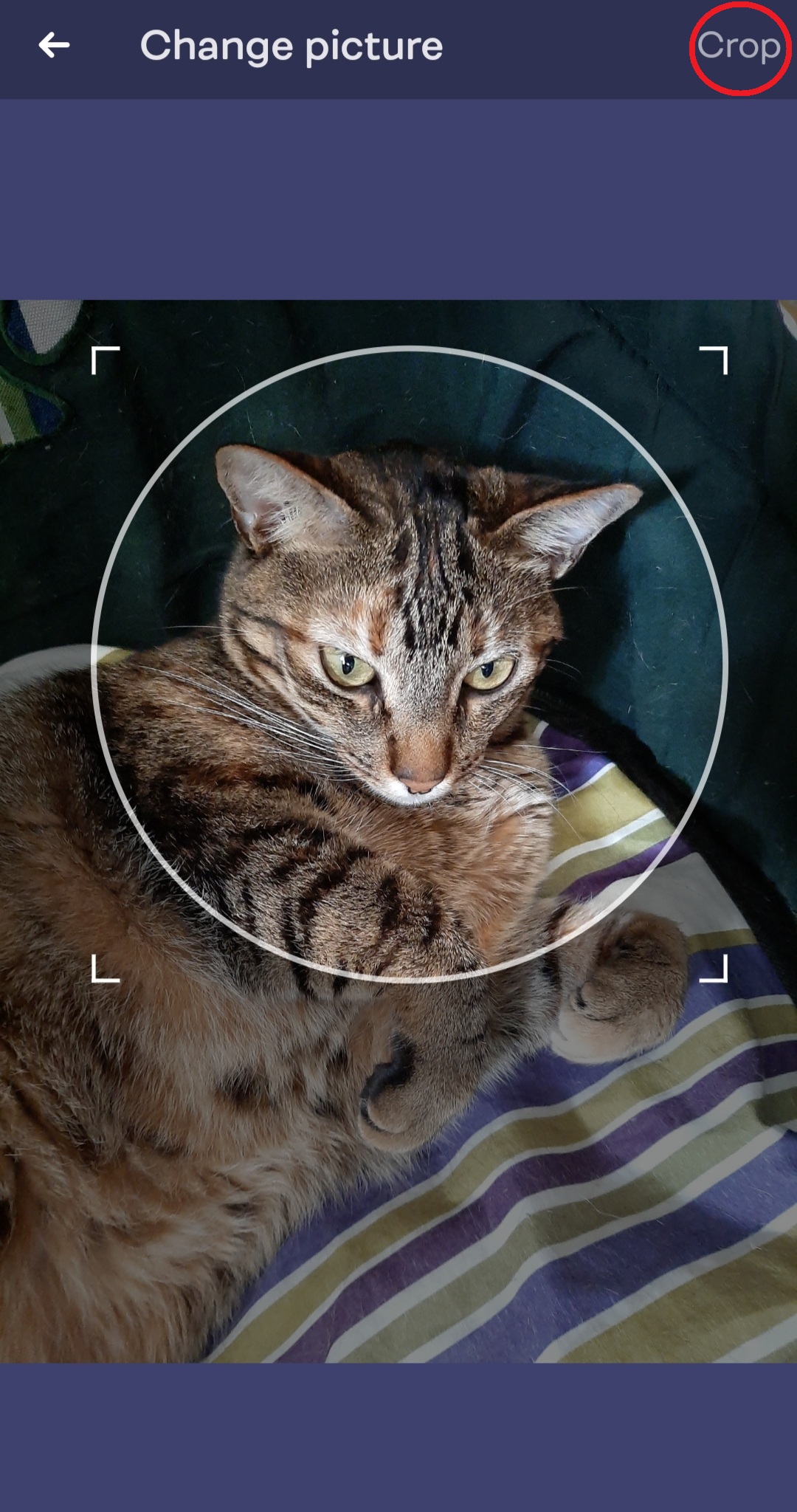
-
Click on "change profile picture".
-
Set up the sound effects.
-
Click on the toggle bar to switch it on or off.
Figure 8. Sound effects off 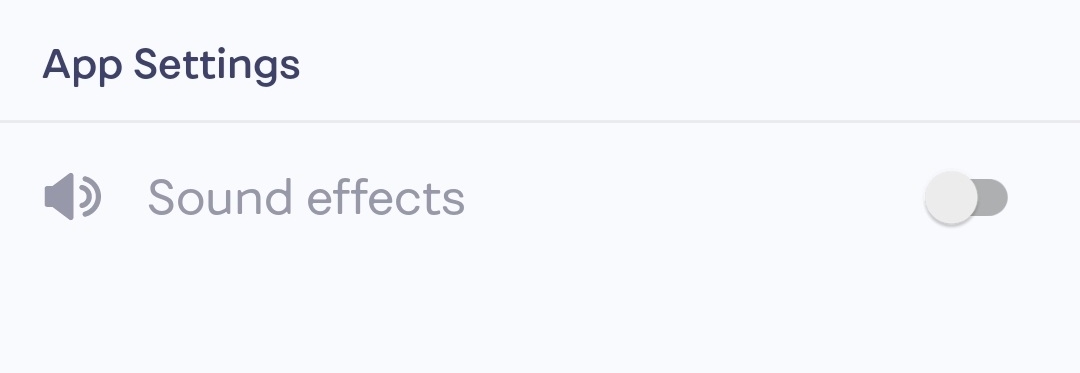
Figure 9. Sound effects on .jpg)
-
Click on the toggle bar to switch it on or off.
-
Change password.
-
Click on "change password".
Figure 10. Password reset 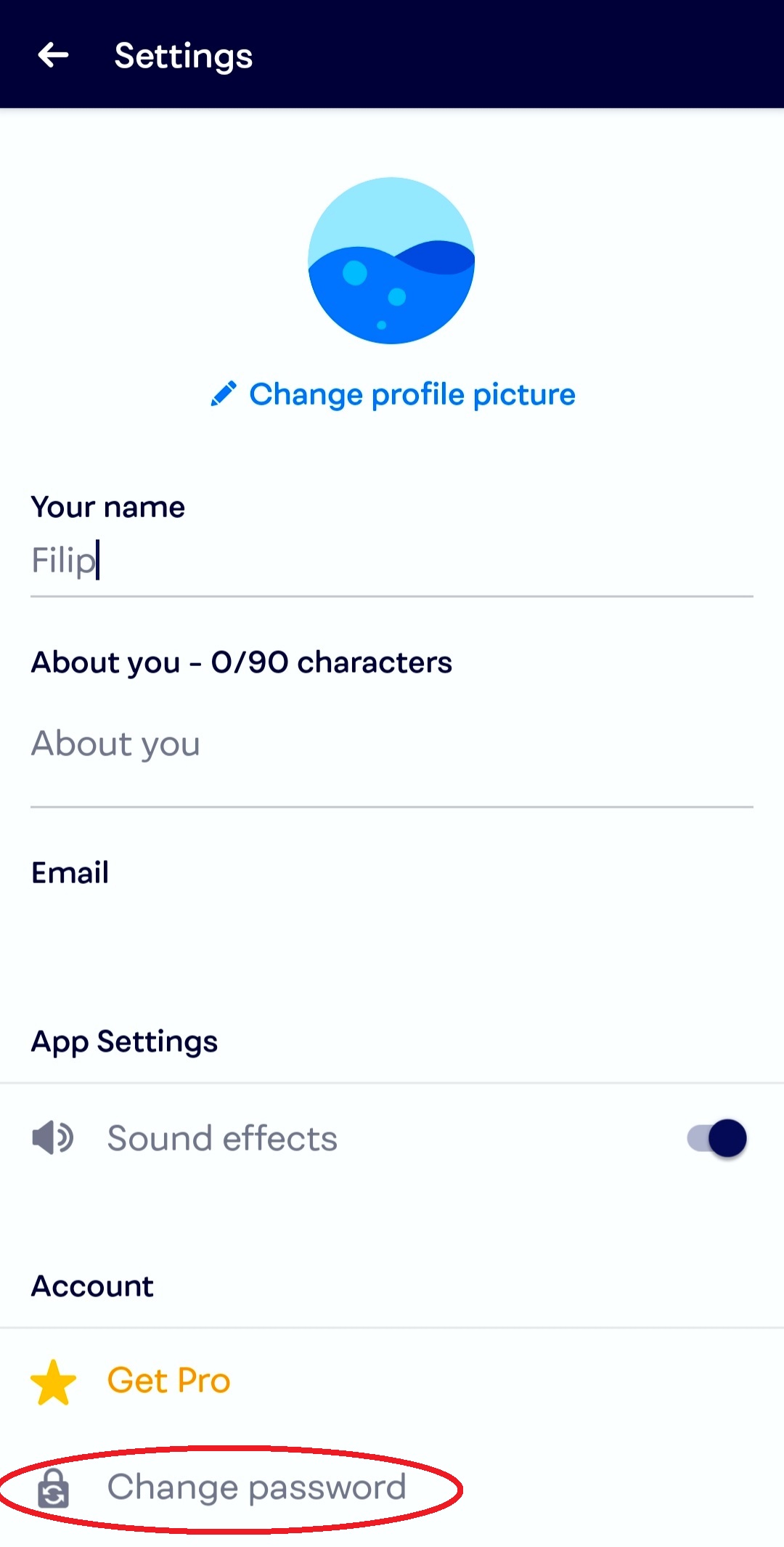
-
Introduce your e-mail addres in "your email" window.
Figure 11. Introducing your password 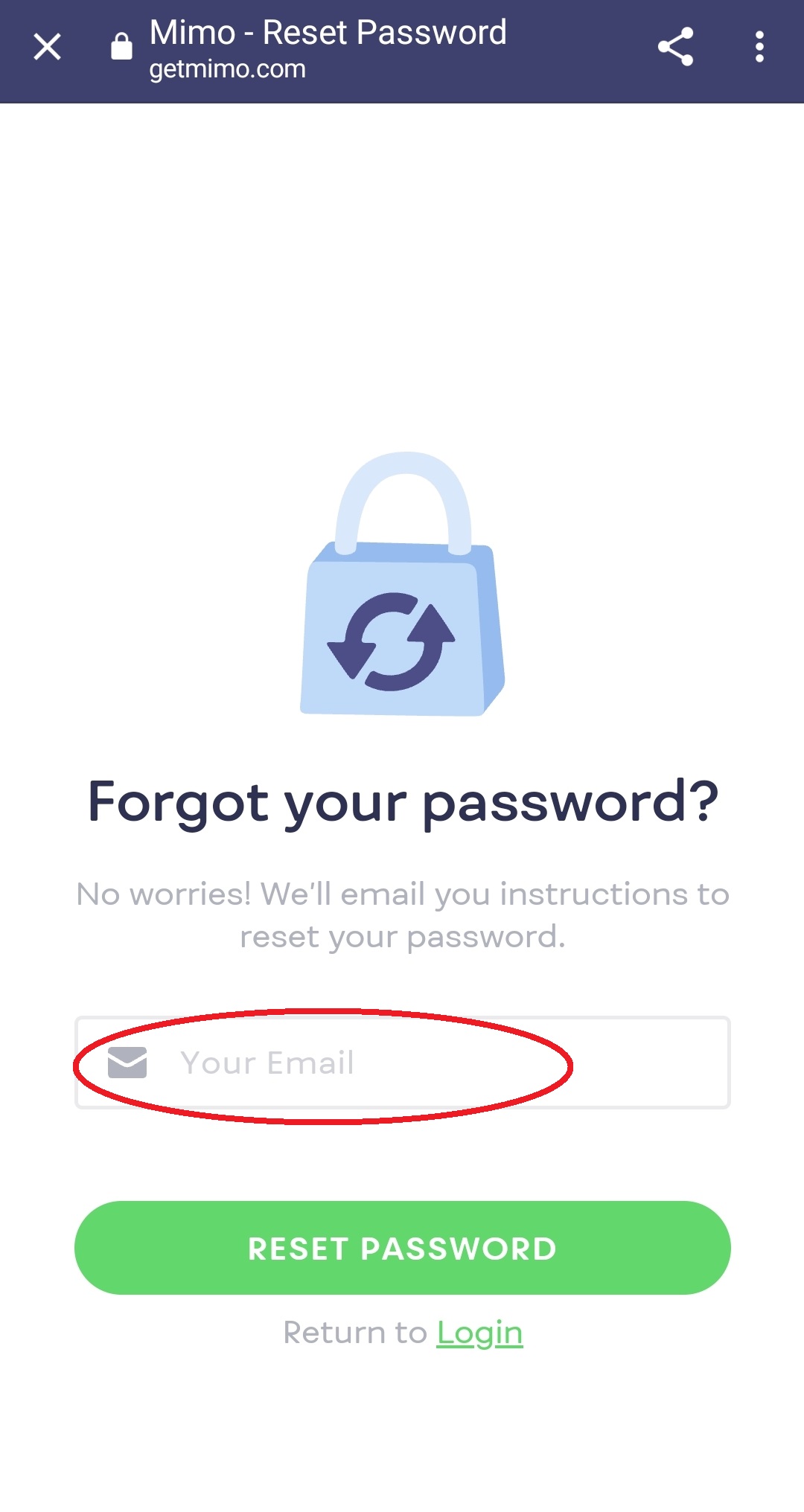
-
Click on "reset password" button.
Figure 12. Finalizing the process 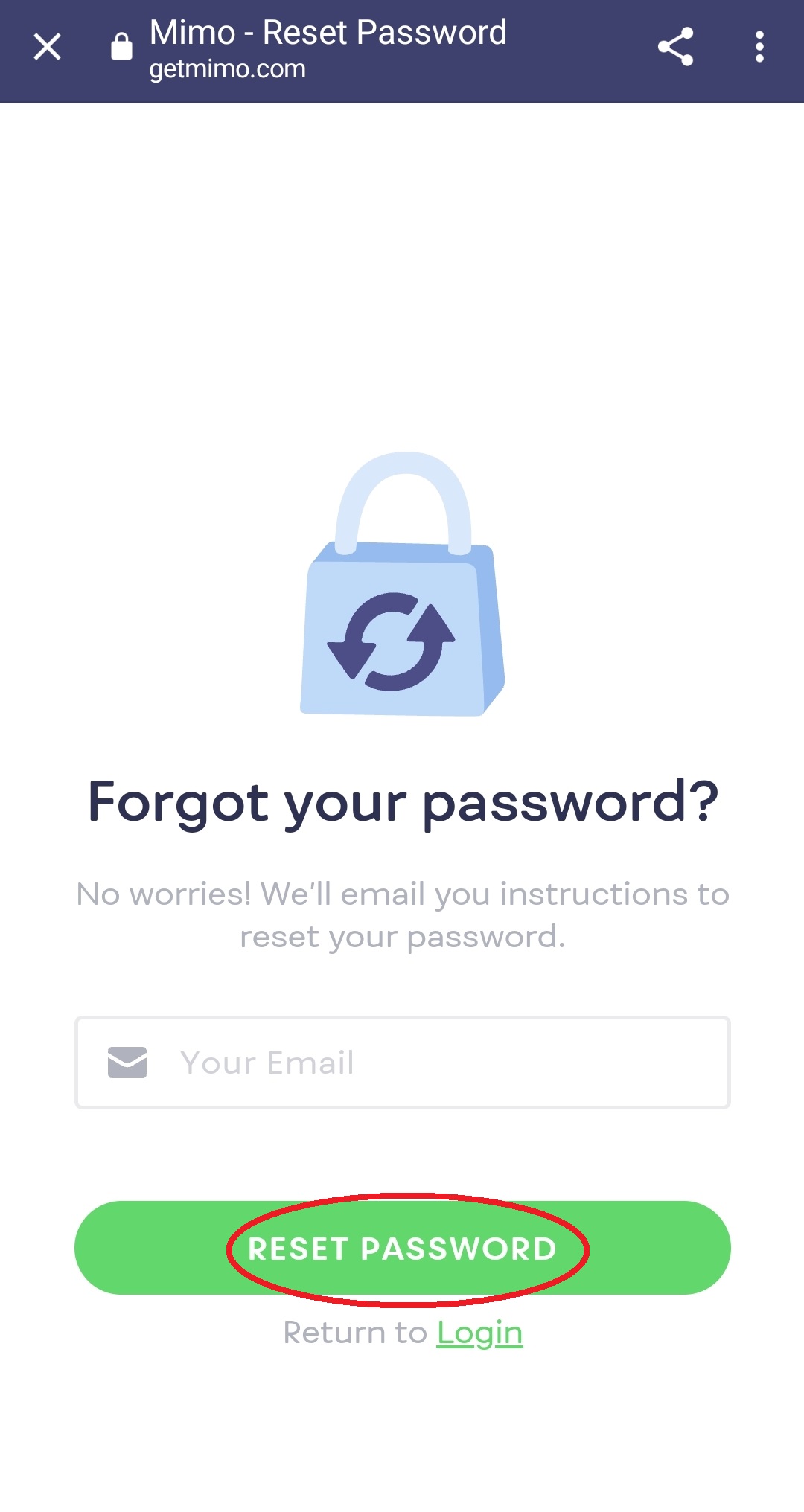
-
Click on "change password".
-
Delete account.
-
Click on "delete account".
Figure 13. Delete account 1 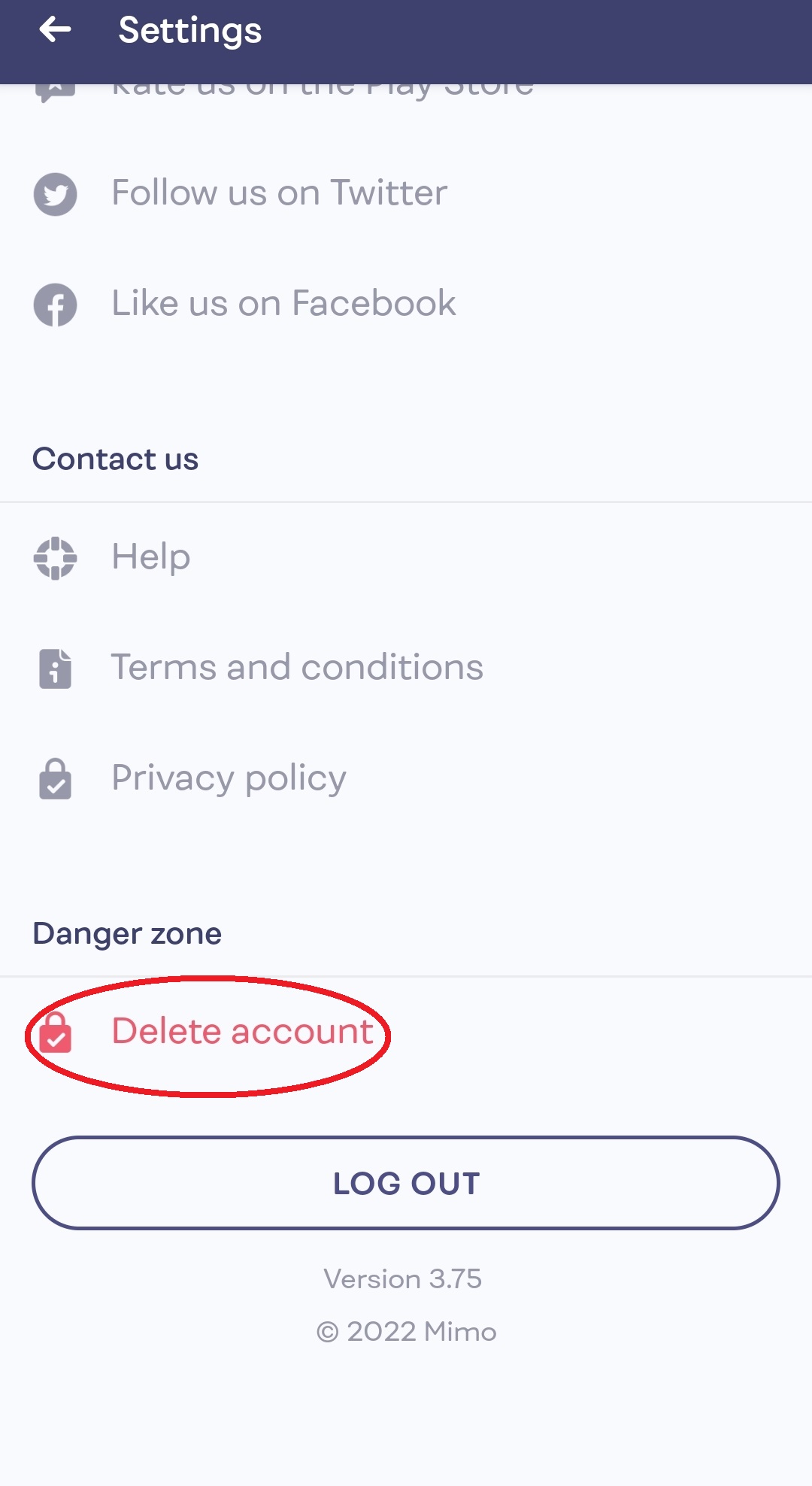
-
Click on "delete" button to complete the delete.
Figure 14. Delete account 2 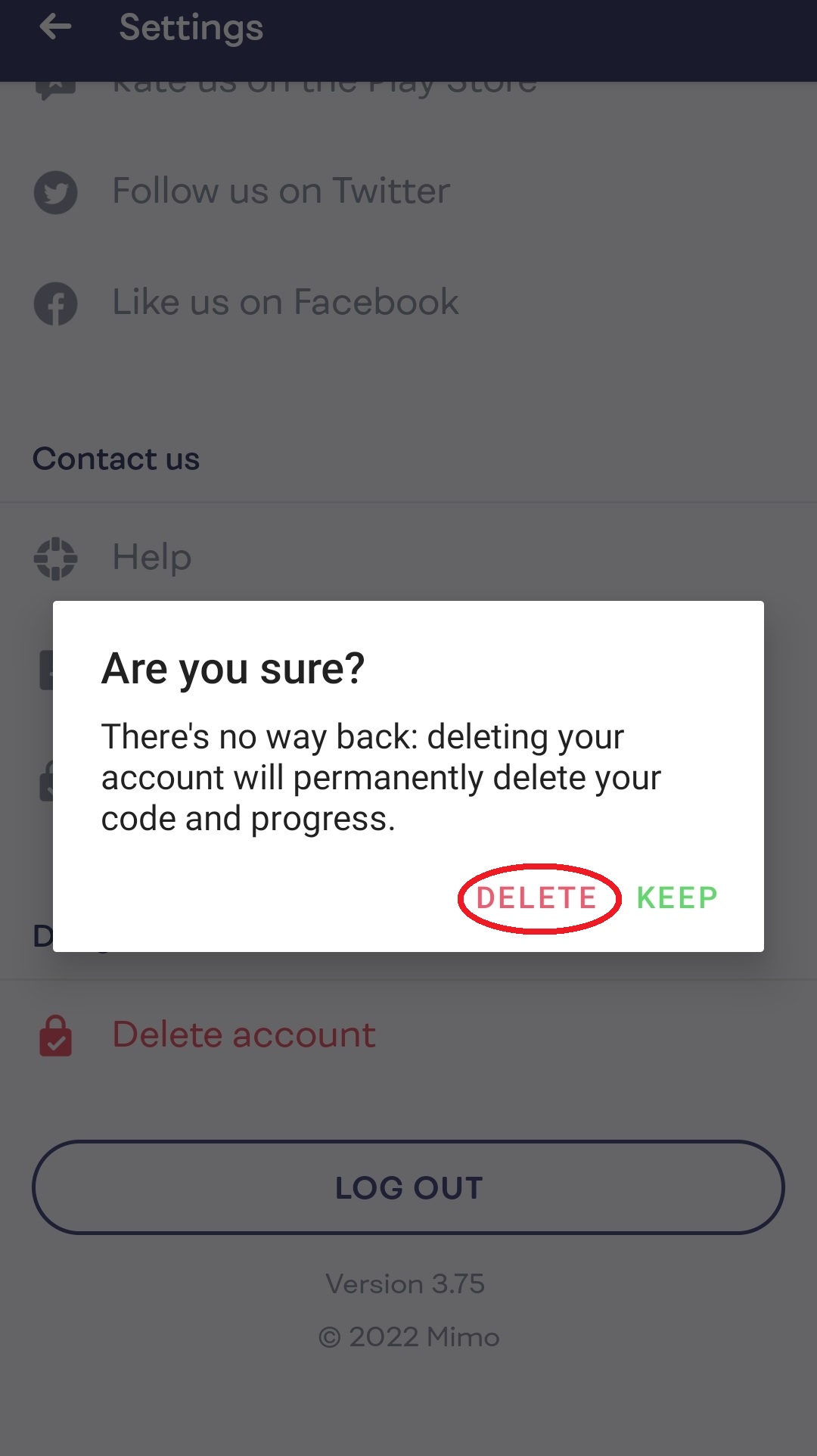
-
Click on "delete account".
-
Log out.
-
Click on "log out".
Figure 15. Log out .jpg)
-
Click on "log out".