Elements
Other elements of Mimo app: Leaderboard, Community, Mimo Store; Activity Calendar; Playgrounds
- Leaderboard
Figure 1. Leaderboard 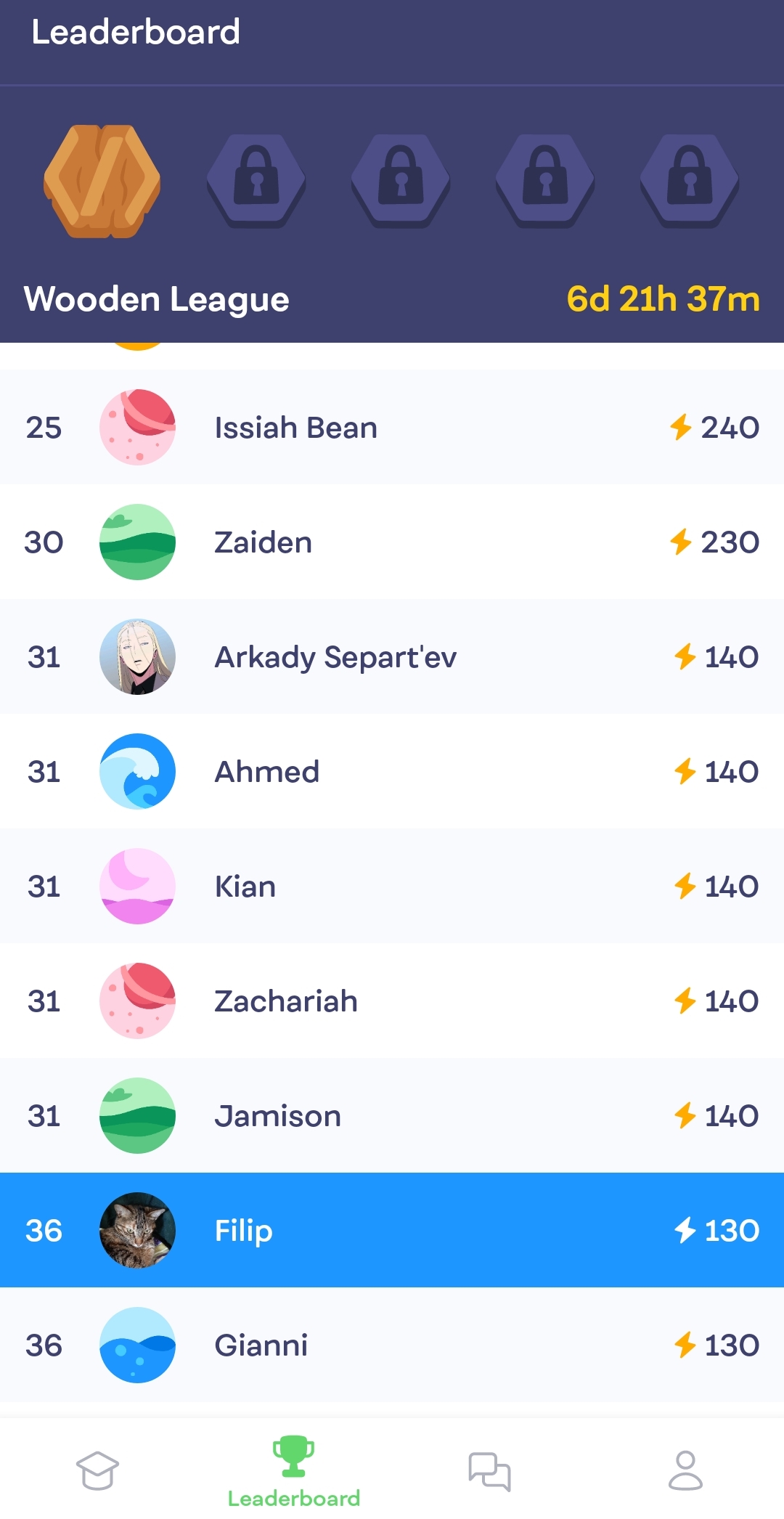
On leaderboard you can see your current standings, check your league and see your competition. The leaderboard is updated every week. There are five leagues, starting from Wooden. You have to be in the top 10 to advance to the next league.
- Community
Figure 2. Community 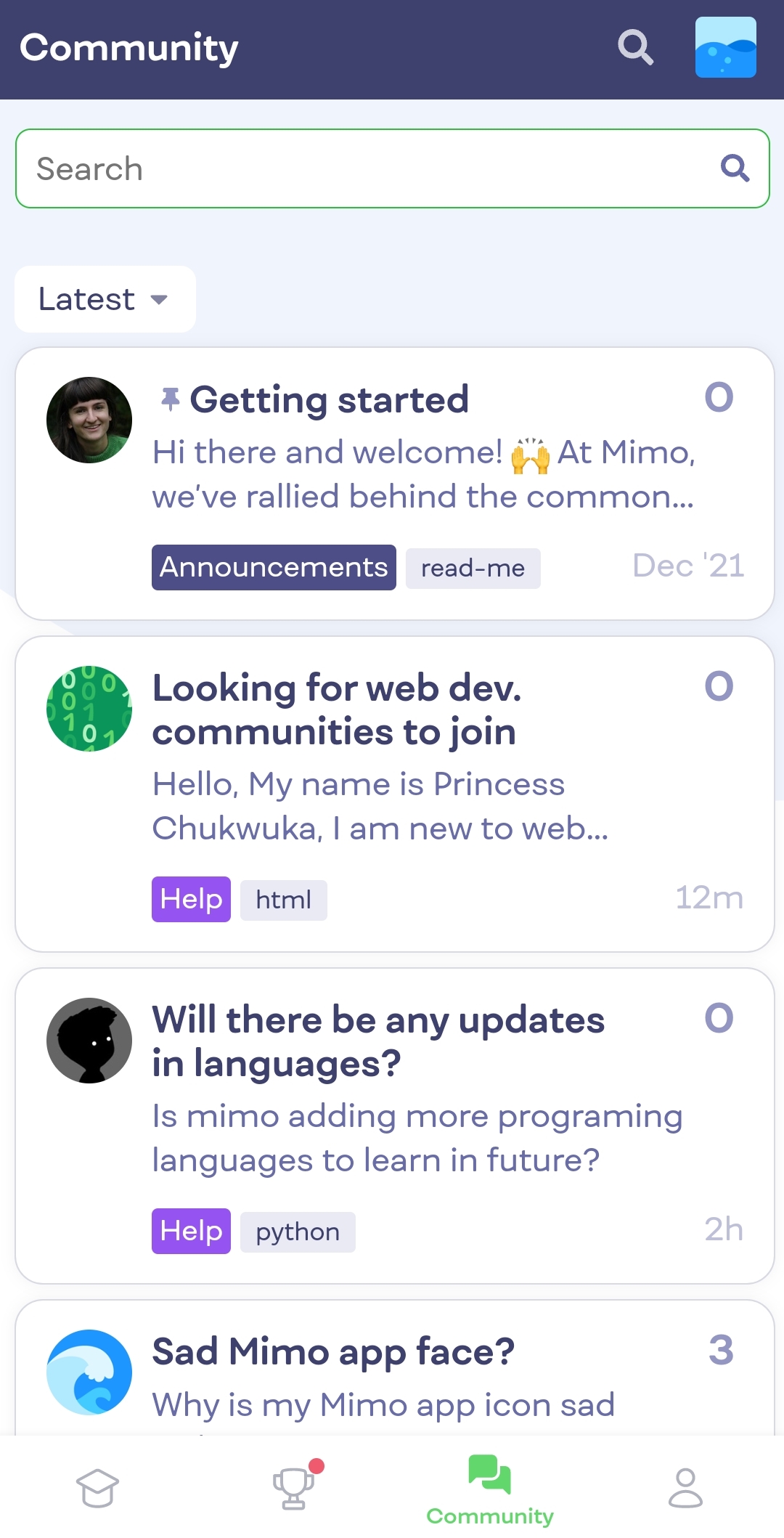
You can use this feature to communicate with the community of learners and look for useful information.
- Mimo store
Figure 3. Mimo Store 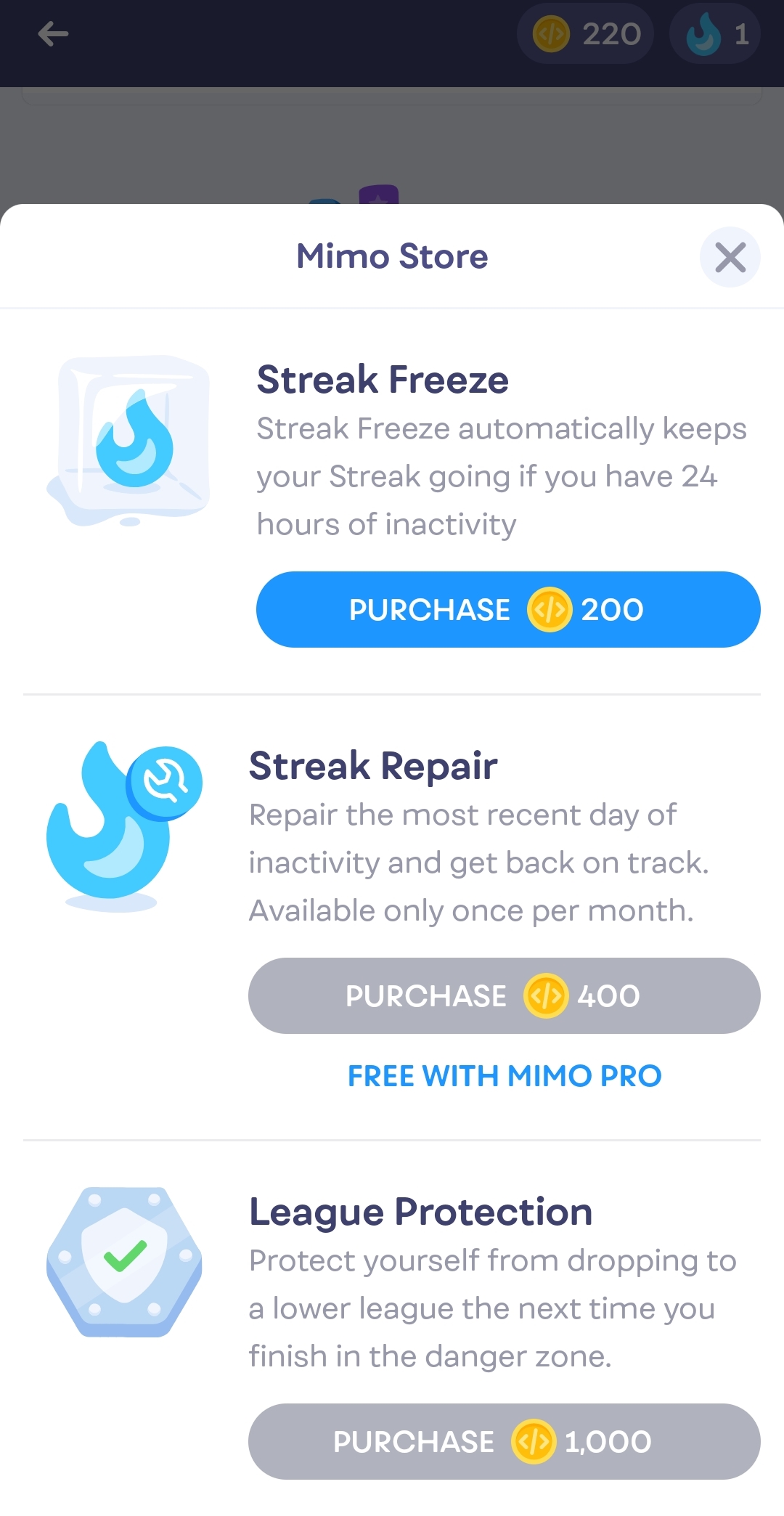
You receive coins after completing lessons. You can access Mimo Store to exchange your coins for: streak freeze, streak repair and league protection. With streak freeze you can keep your streak going if you have 24 hours of inactivity. You can use streak repair to repair the most recent day of inactivity. With league protection you can protect yourself from dropping to a lower league when you end up in the danger zone.
- Activity
Figure 4. Activity 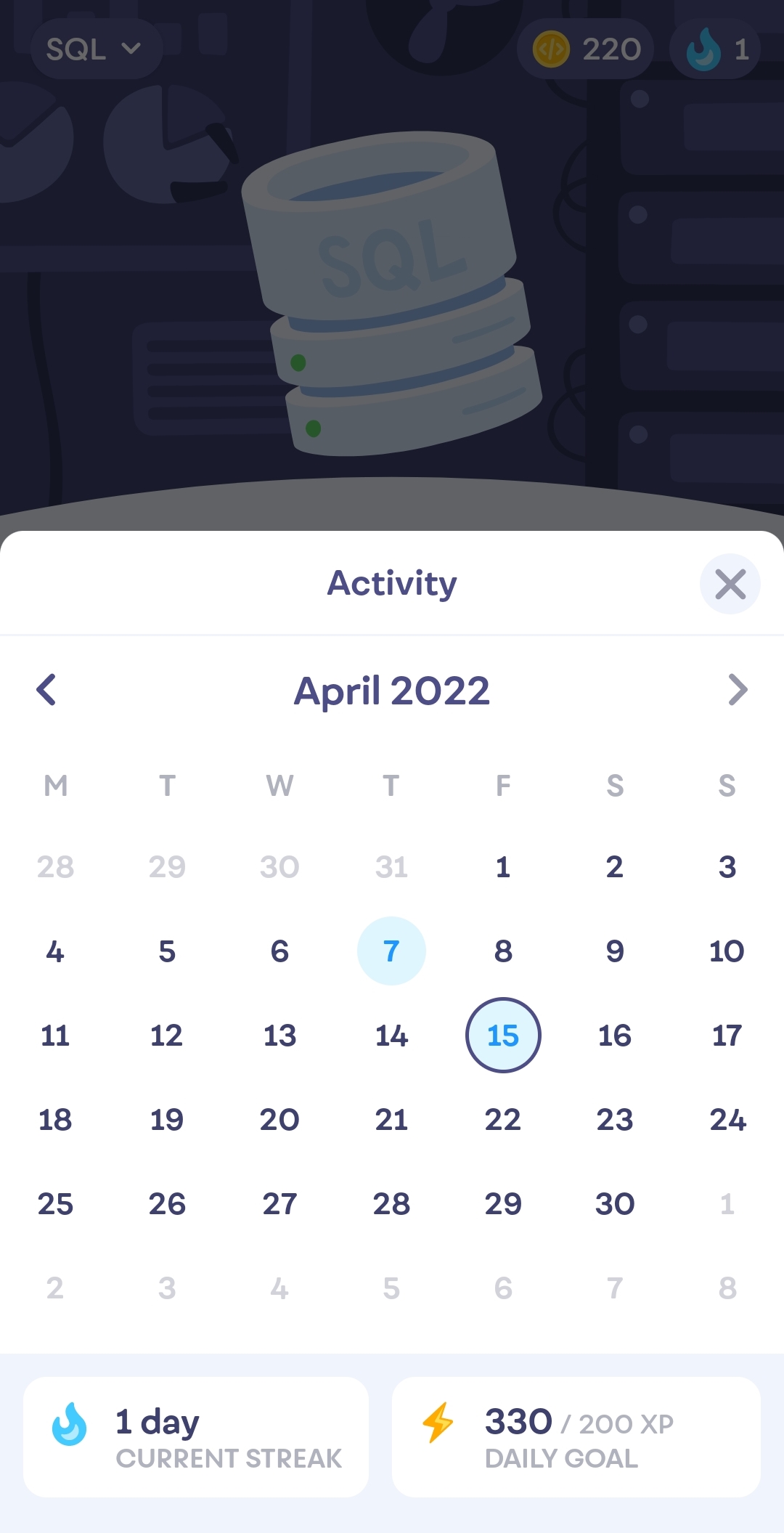
Activity tabs shows you the days when you completed lessons. It shows you your current streak as well. The streak is the number of days in a row you have completed a lesson. Your streak will increase by 1 day once you finish a lesson.
- Playgrounds
Playground is an option that allows you to practice what you have learned.
Using other functions of Mimo
How to access additional functions of Mimo (leaderboard, community, mimo store, activity calendar,playground)
-
Leaderboard
-
To access the leaderboard click on the "cup" icon below.
Figure 5. Accessing leaderboard 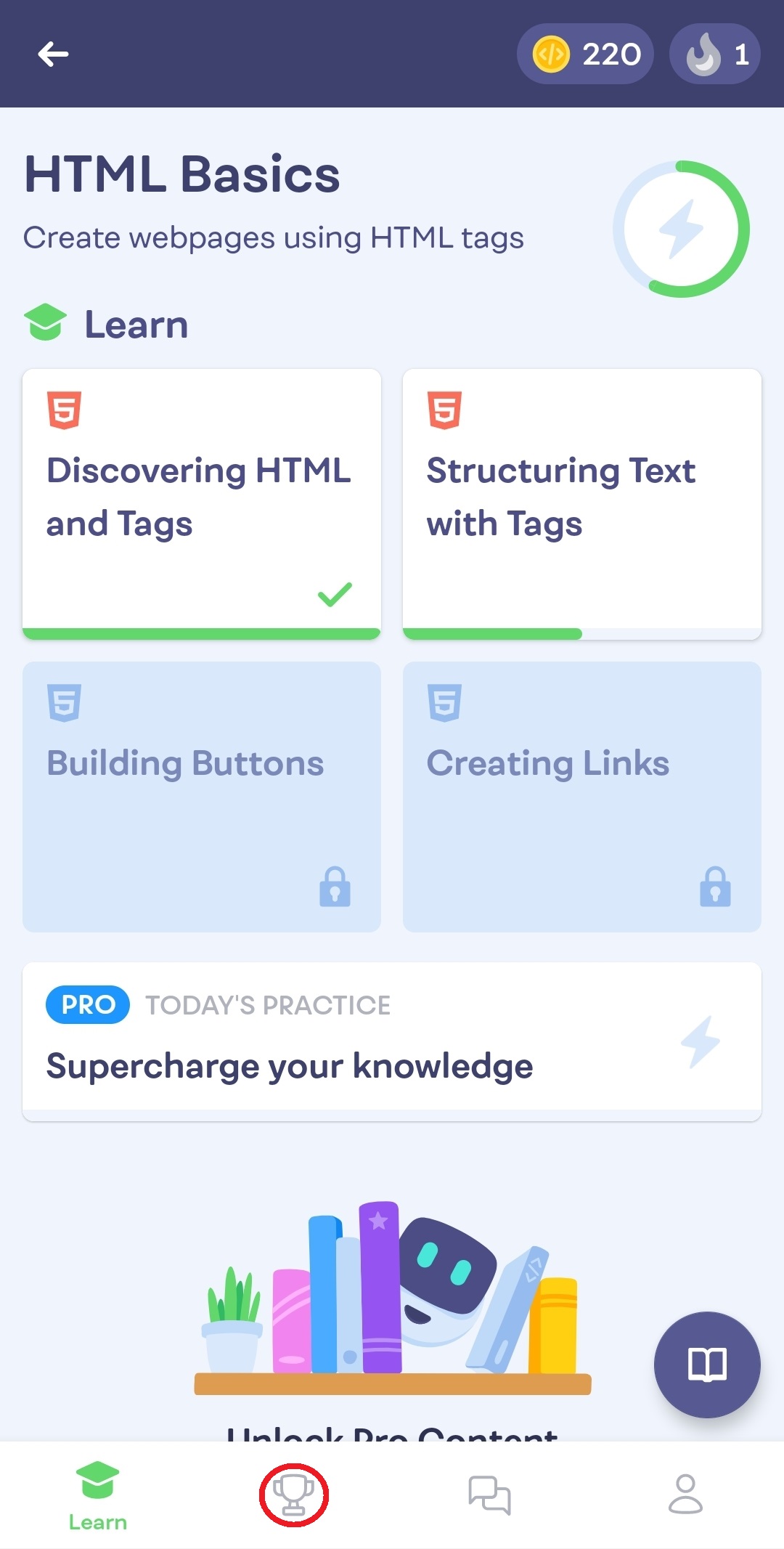
-
Now you can see your league and your rank.
Figure 6. Leaderboard
-
To access the leaderboard click on the "cup" icon below.
-
Community
-
Click on "Community" icon below to acces the forum.
Figure 7. Accessing community .jpg)
-
Now you can search for any topic on a community forum.
Figure 8. Community
-
Click on "Community" icon below to acces the forum.
-
Mimo Store
-
Click on the "coin" icon to access Mimo Store.
Figure 9. Accessing Mimo Store .jpg)
-
Now you can see the Mimo Store.
Figure 10. Mimo Store 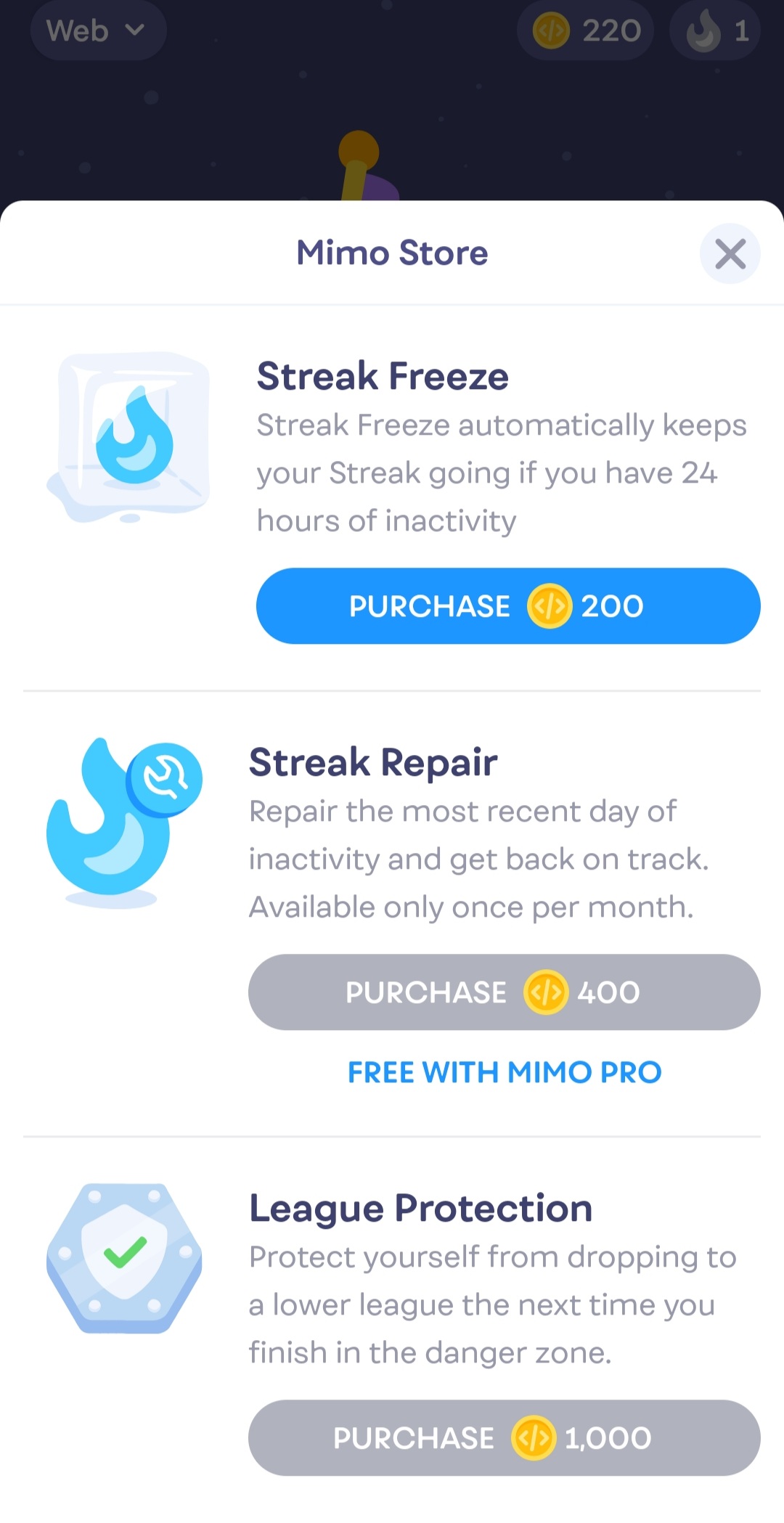
-
Click on the "coin" icon to access Mimo Store.
-
Activity
-
Click on the "flame" icon to acces Activity Calendar.
Figure 11. Accessing Activity .jpg)
-
Now you can see the Activity Calendar.
Figure 12. Activity Calendar 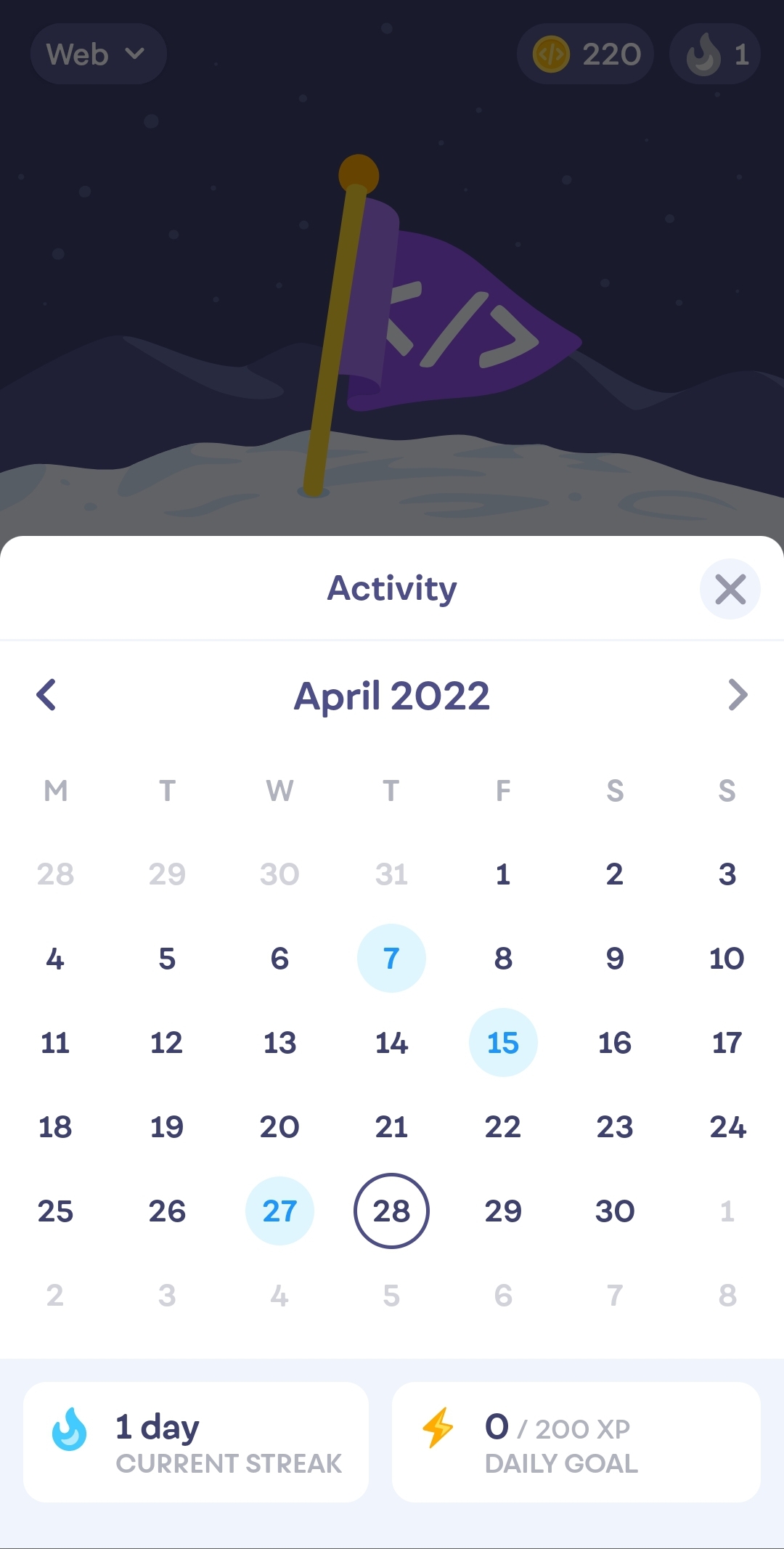
-
Click on the "flame" icon to acces Activity Calendar.
-
Playground
-
Click on the "profile" tab to access playgrounds.
Figure 13. Acessing playgrounds .jpg)
-
Click on "CREATE" button to create a playground.
Figure 14. Creating a playground 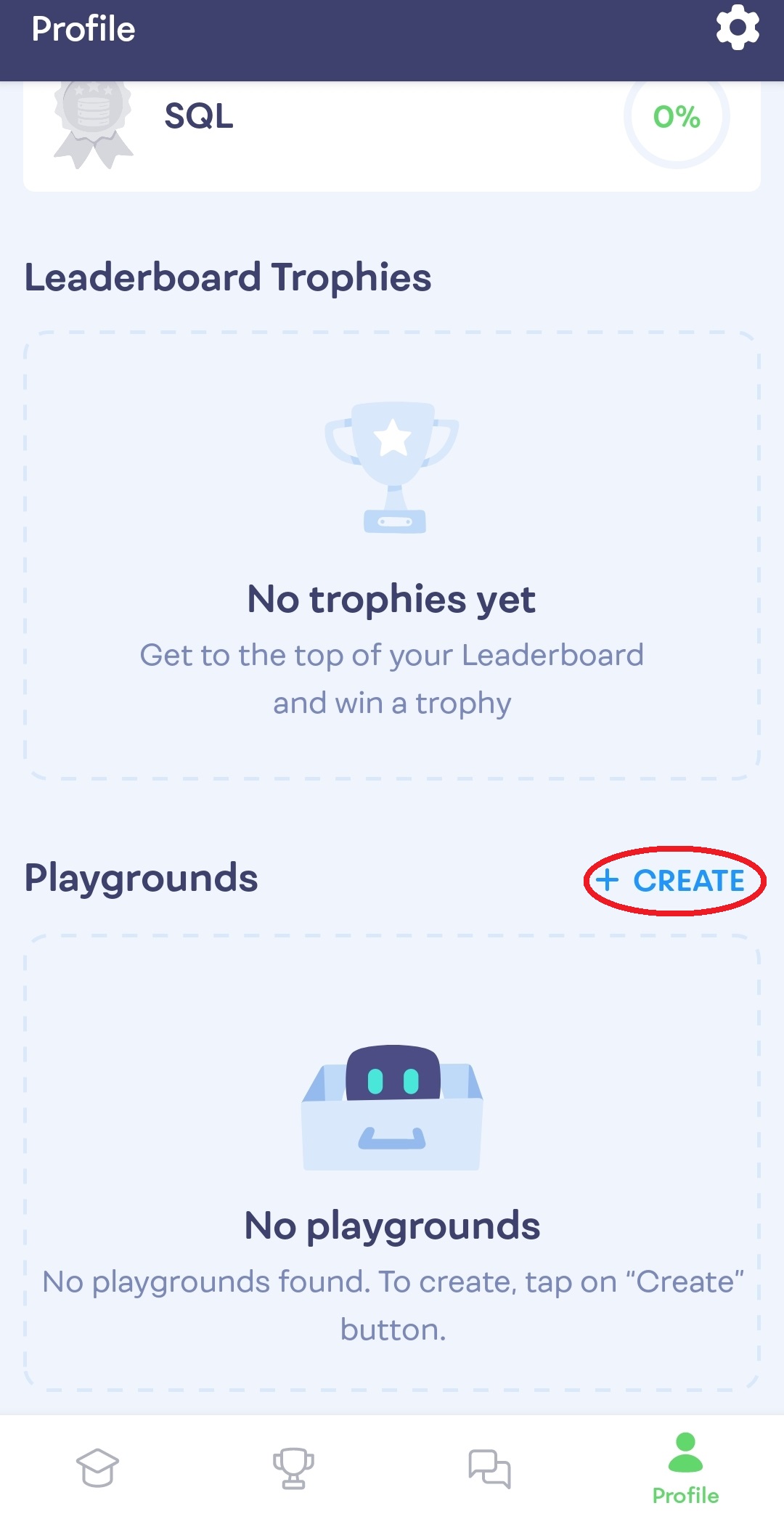
-
Select a template from: Python program, JavaScript program, Simple
website and React app.
Figure 15. Selecting a template 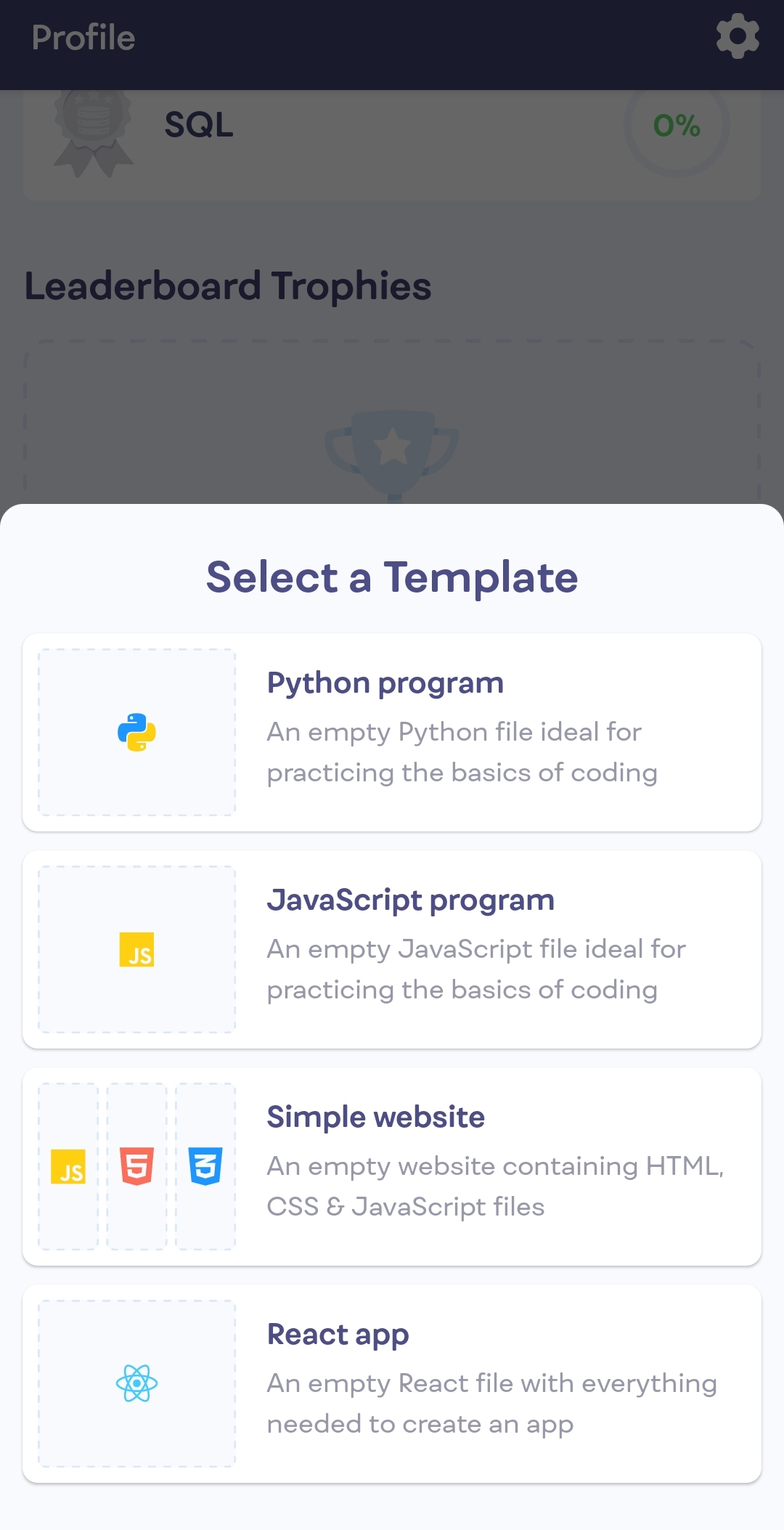
-
You can code anything you want in the playground.
Figure 16. Playground 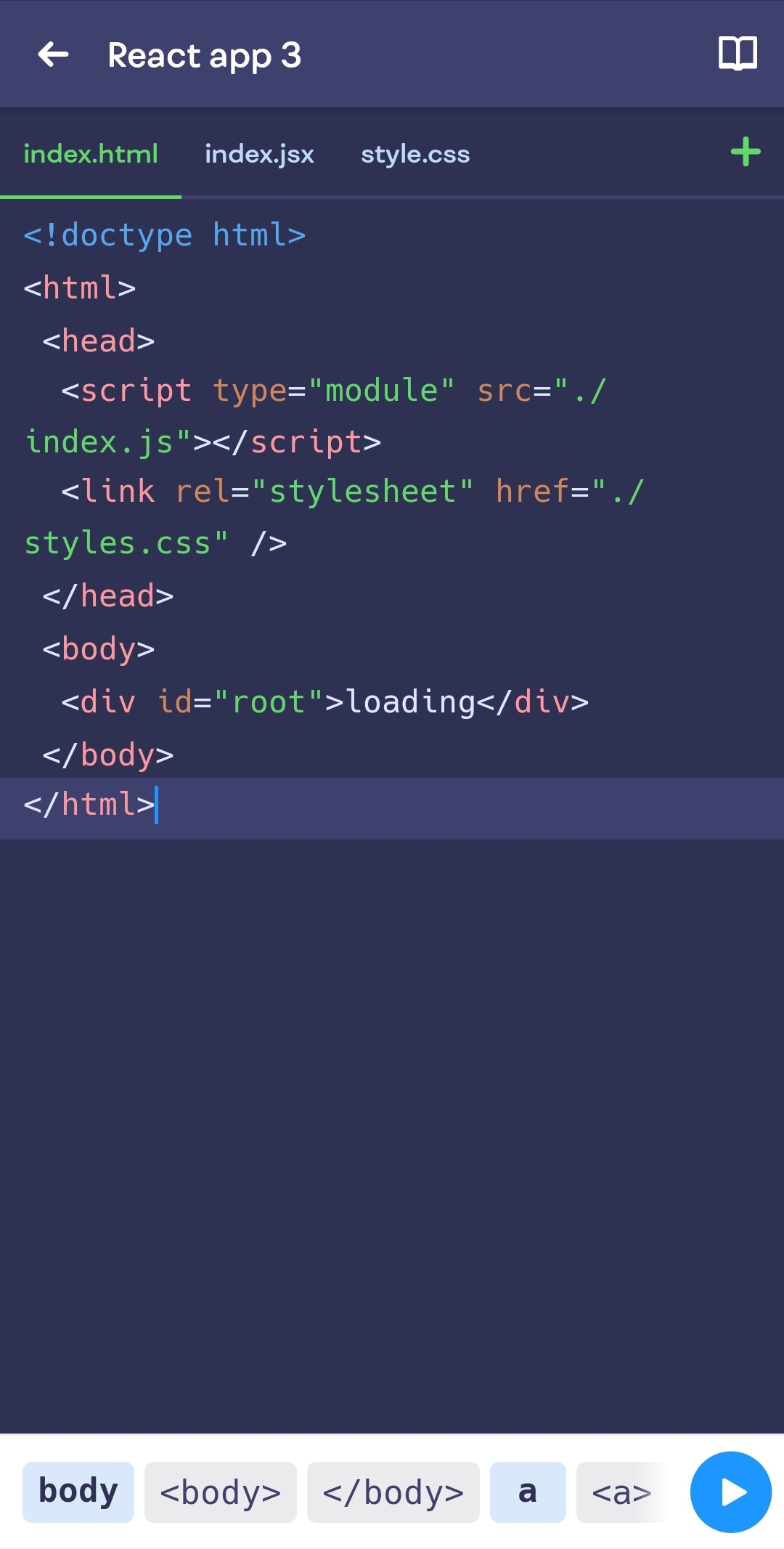
-
Click on the "profile" tab to access playgrounds.