Installing the application
Where to find the application; how to install it; account setup
How do I start using Mimo
How to install the application and set up an account
-
Open Google Play Store and look for Mimo. Once you find it, click on the
"install" button.
Figure 1. Downloading Mimo from Google Play Store 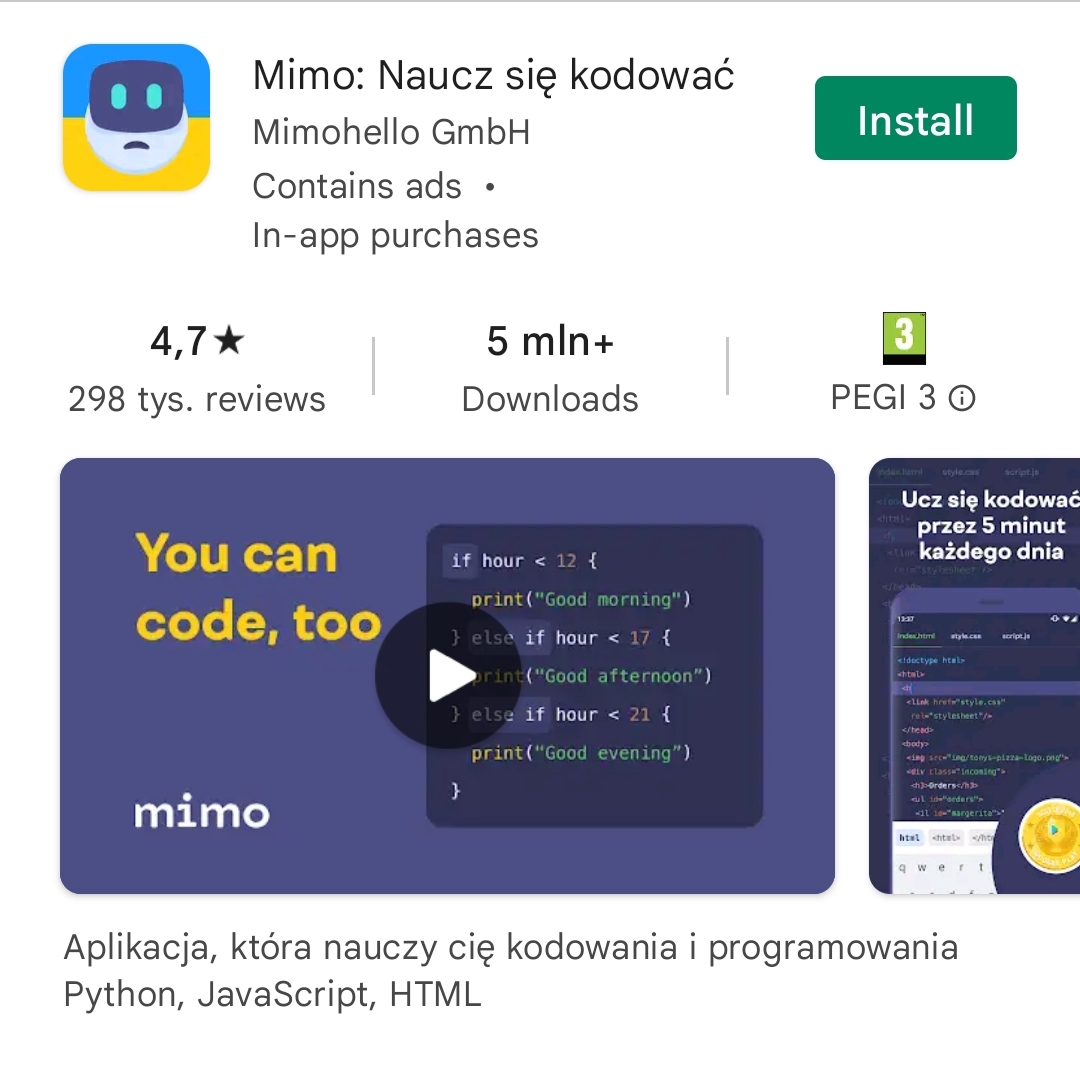
-
Click on the "Get started" button in order to create a new account.
Figure 2. Getting started 
-
Click on the "Let's go" button to continue creating your account.
Figure 3. Introduction 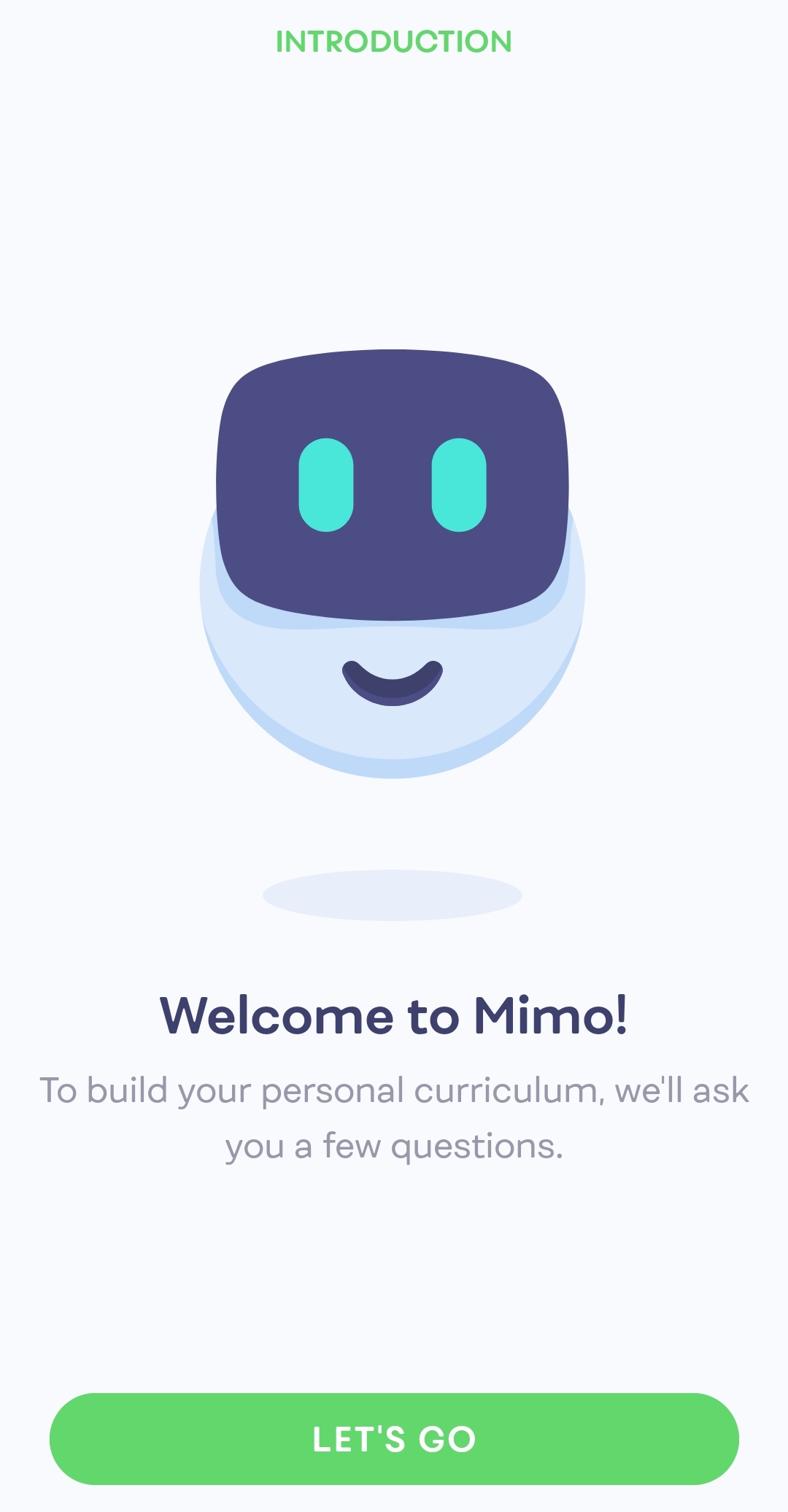
-
Choose one of the following options to state why you are interested in learning
to code:
- To become a professional developer
- Just for fun
- For my current job
- For a different reason.
Figure 4. Motive 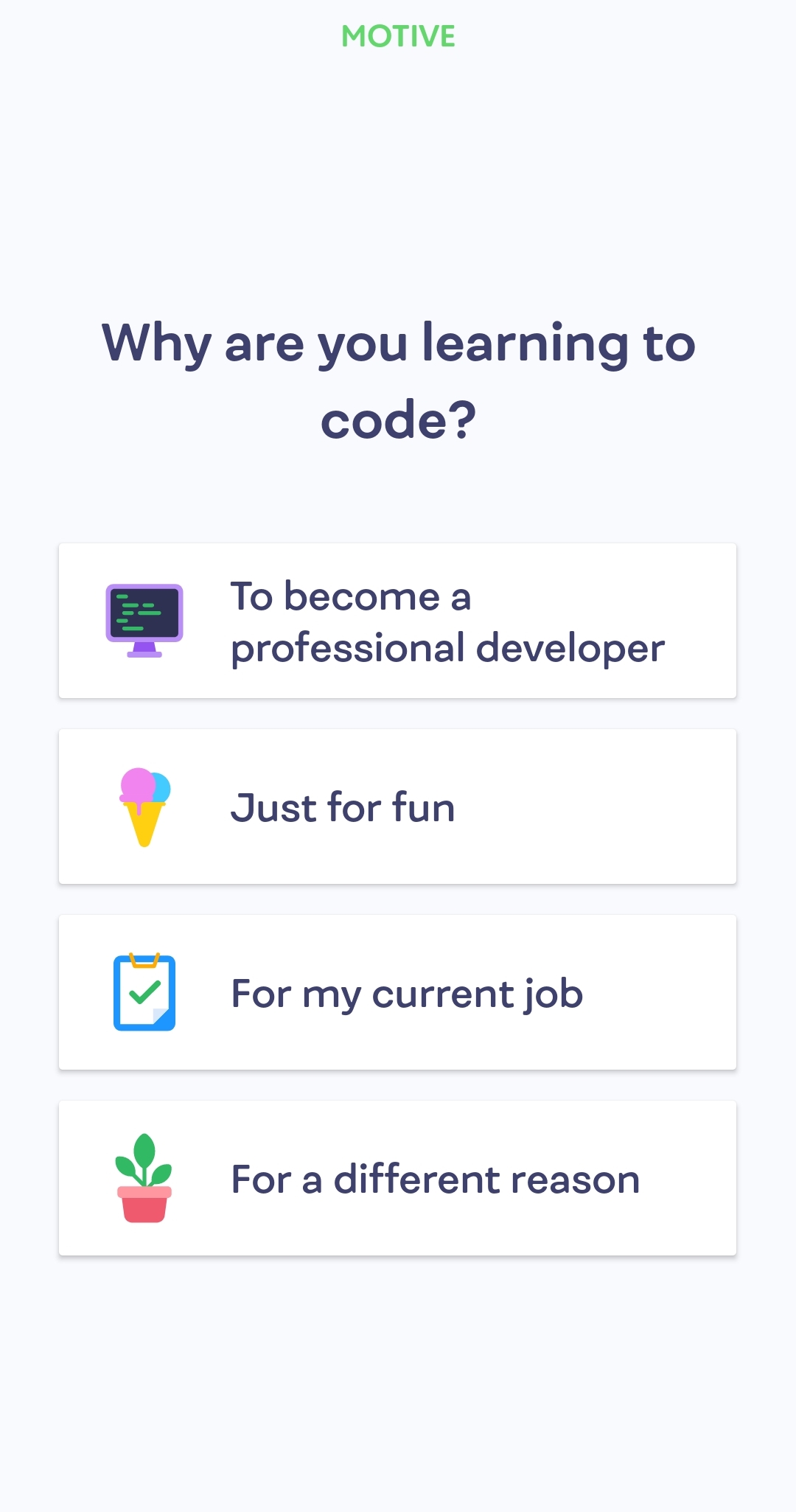
-
Choose the option that decribes your occupation from the following
options:
- High school student
- University student
- Employee
- None of those.
Figure 5. Occupation 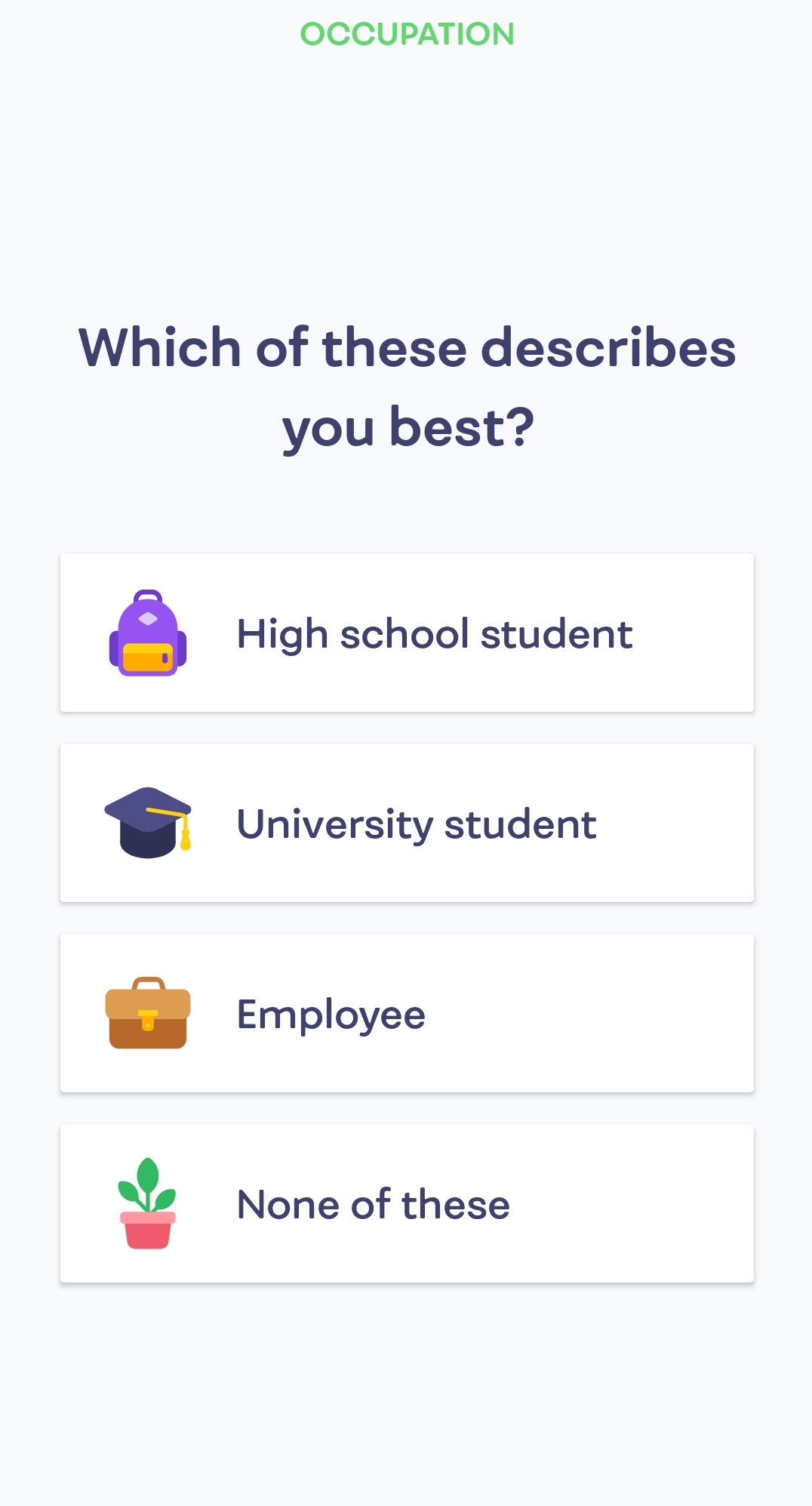
-
Swipe to one of the following options to determine the level of your
experience:
- None
- A little
- A lot.
Figure 6. Experience 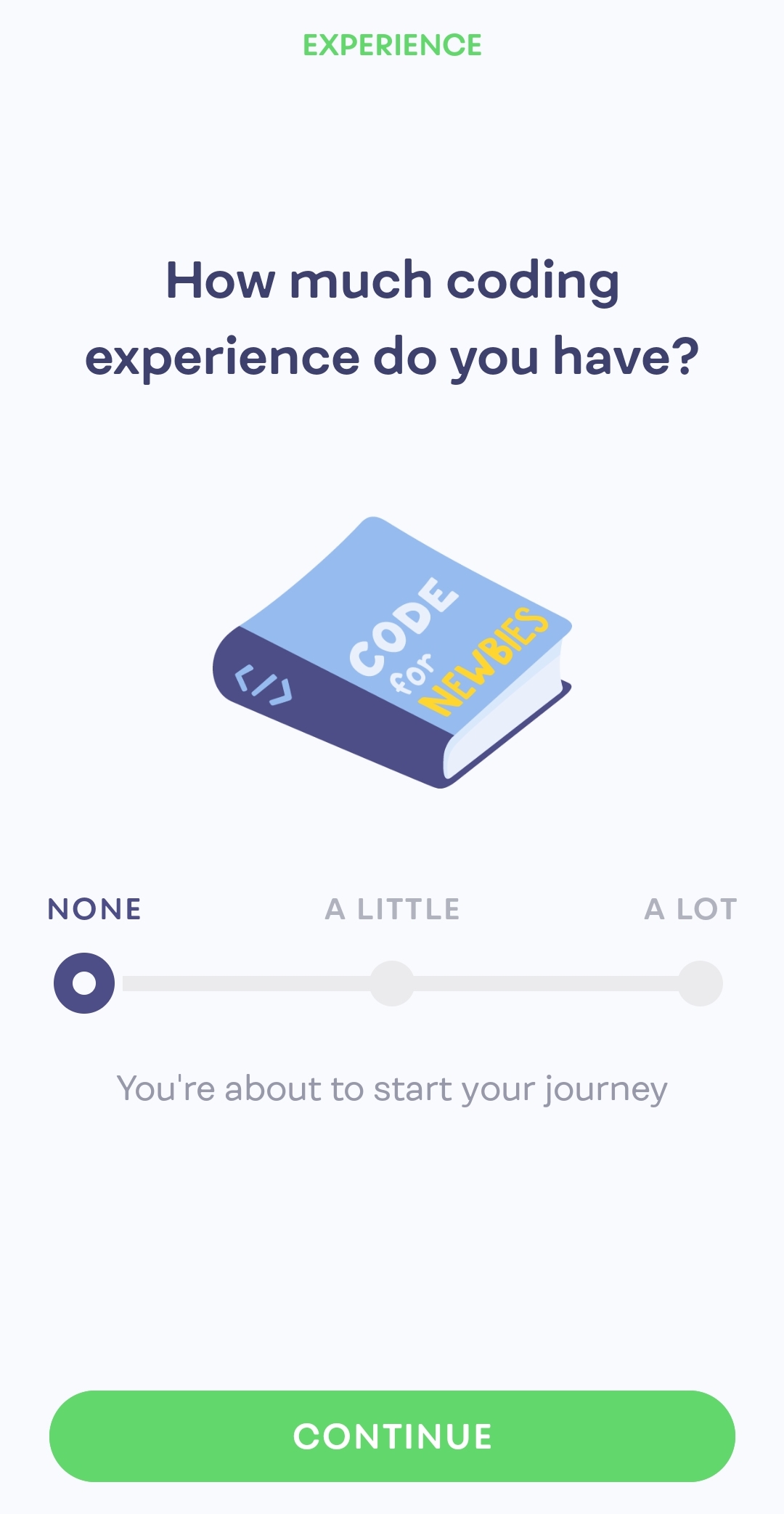
-
Select one of the following options to state what you want to learn:
- Web development
- Python
- SQL.
Figure 7. Paths 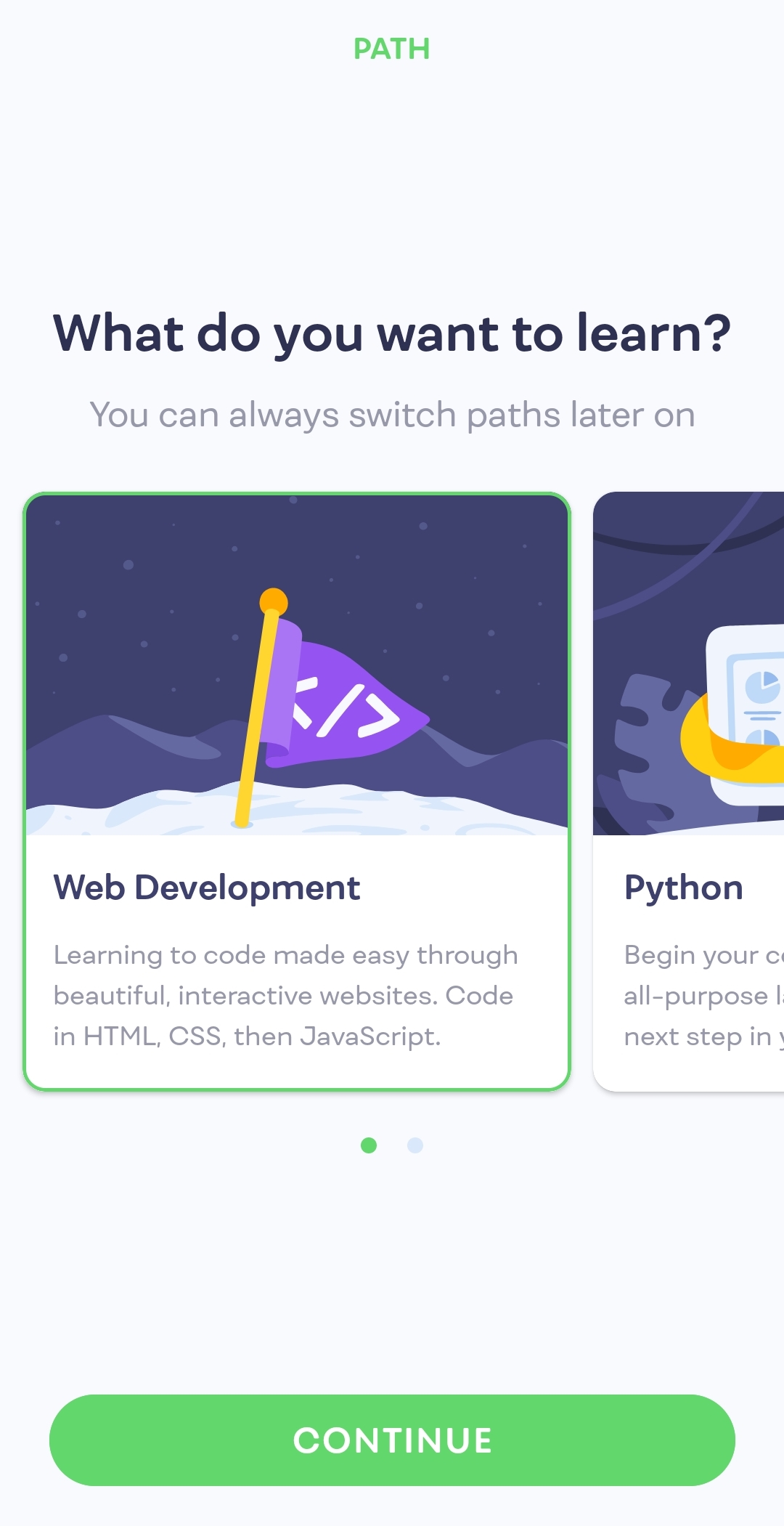
-
Choose one of the following options in order to set the goal:
- Casual (5 minutes of learning daily)
- Regular(10 minutes of learning daily)
- Serious(20 minutes of learning daily).
Figure 8. Goal 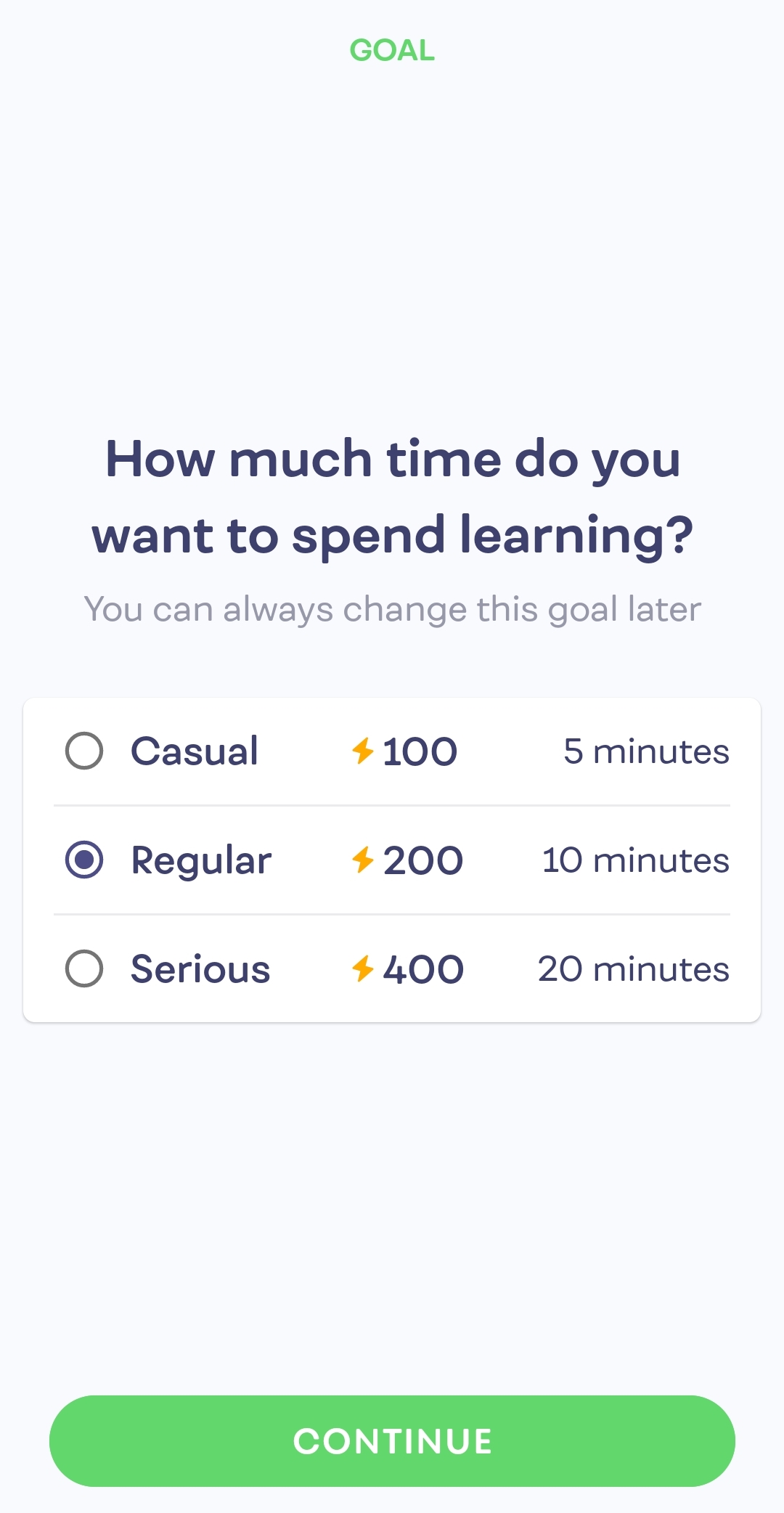
-
Set a time for a daily reminder.
Figure 9. Reminder