Learning with Mimo
How to complete a lesson; types of exercises; glossary
How to study with Mimo
Steps on how to complete a lesson on Mimo
-
Click on "Learn" icon below to start a lesson.
Figure 1. Starting a lesson 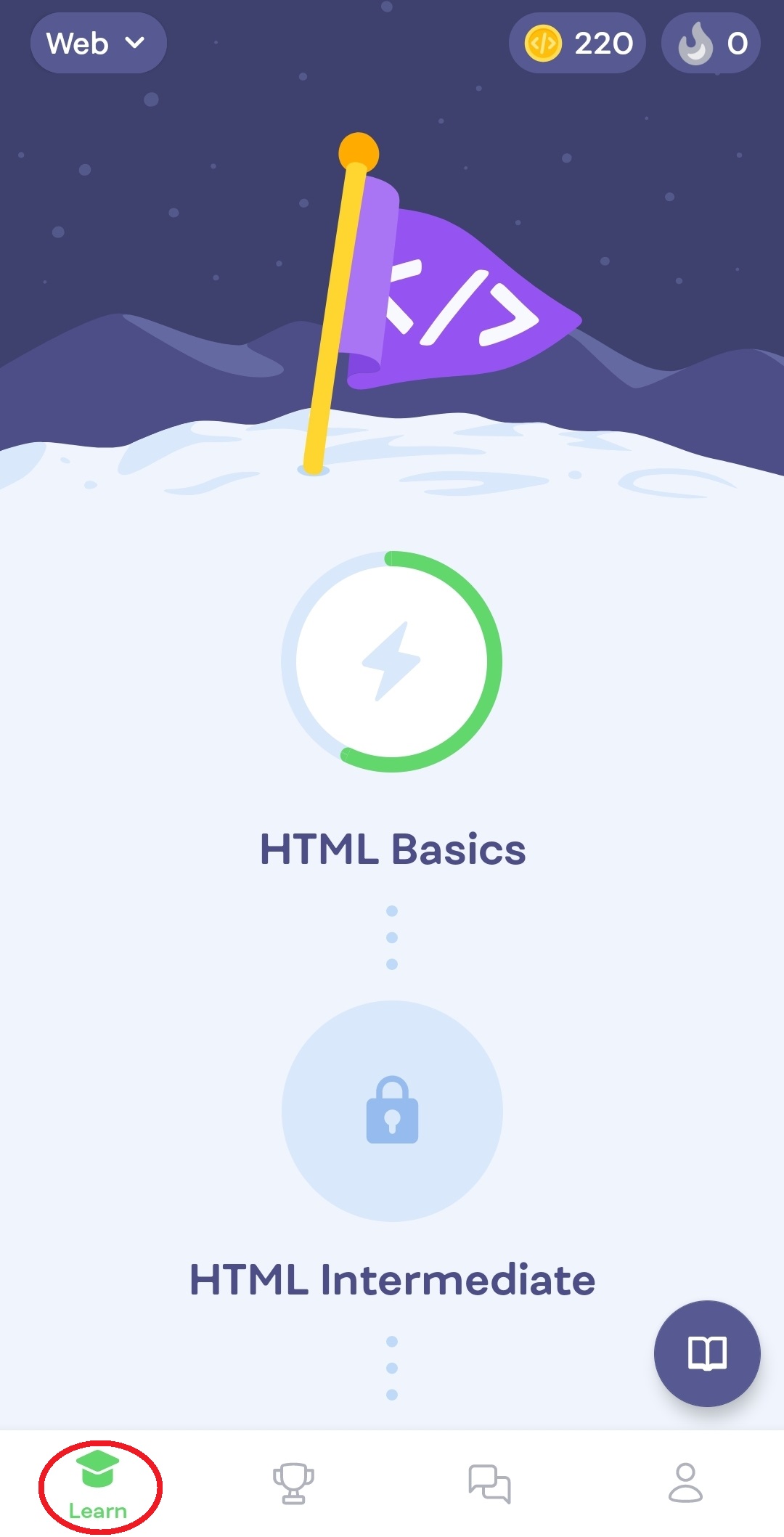
-
Click on the icon with a name of path in the upper left corner.
Figure 2. Starting a lesson .jpg)
-
Chose the path you want to learn from:
- Web Development
- Python
- SQL.
Figure 3. Chosing a path 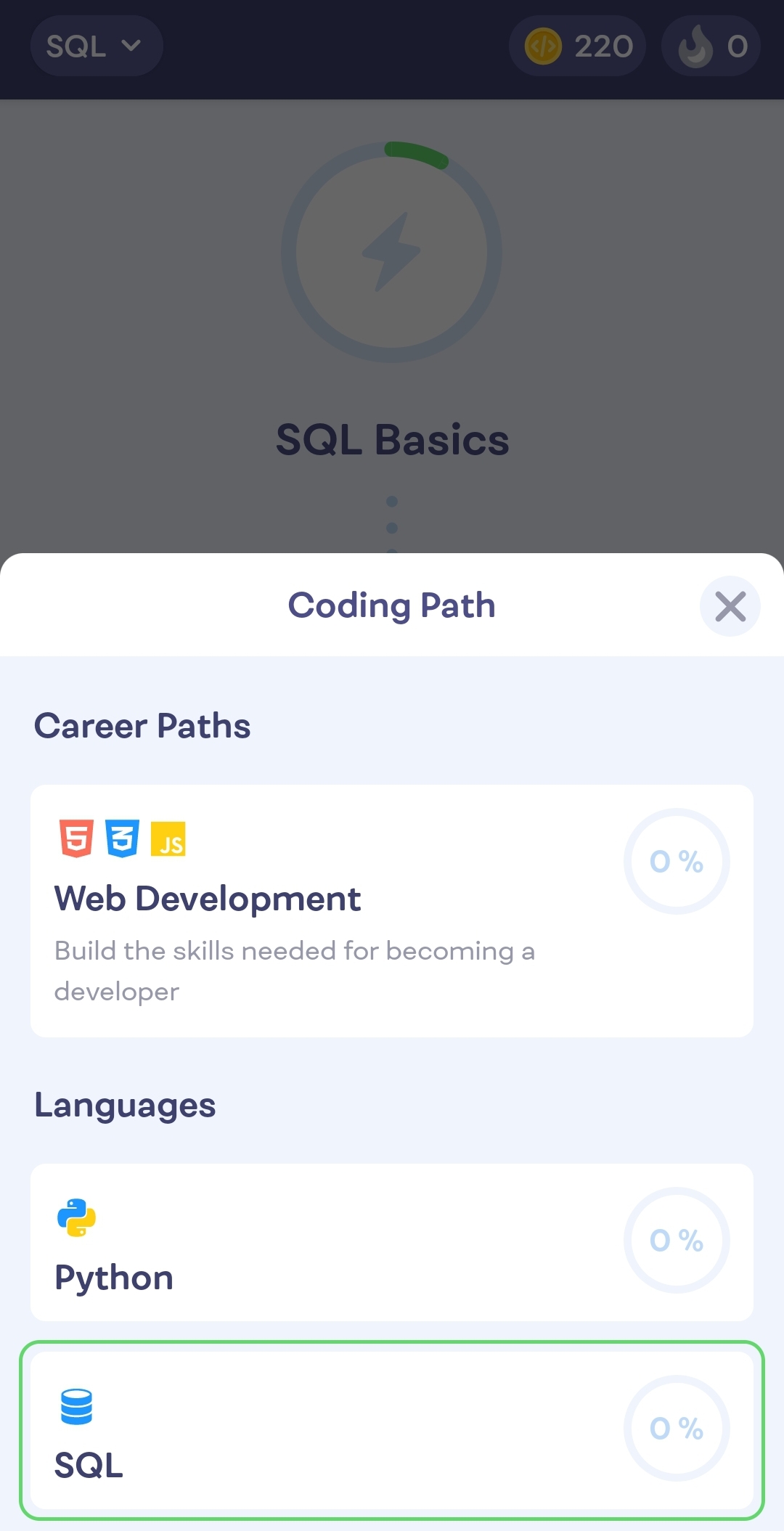
-
Choose a subject you want to learn by clicking on it. You have to finish all
the lessons from a subject to unlock the next one.
Figure 4. Chosing a subject 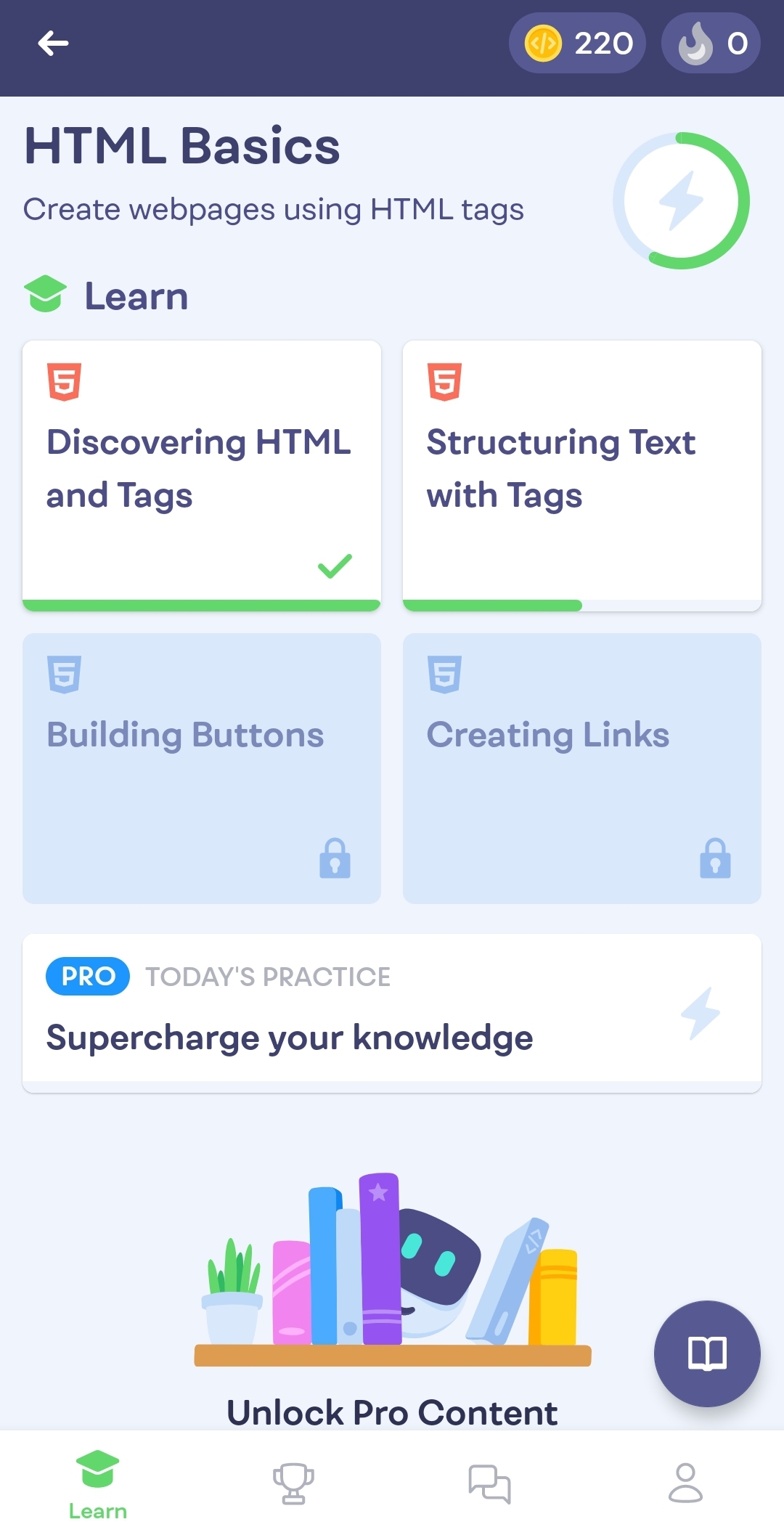
-
Choose a lesson you are interested in. You have to finish a lesson to unlock
the next one.
Figure 5. Choosing a lesson 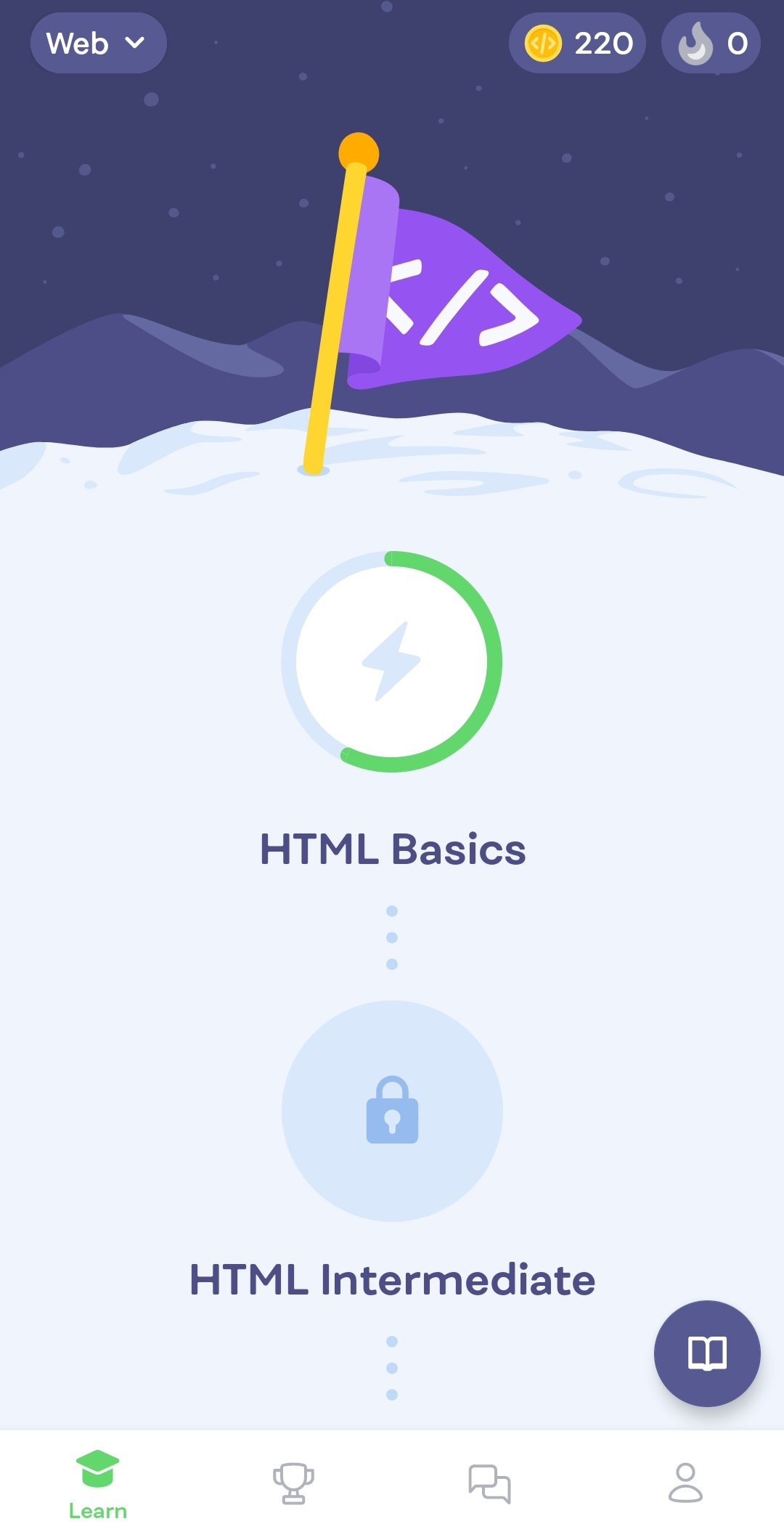
-
Follow the instructions to complete the task. There are three types of
exercises:
-
Choose the right elements in the right order by clicking on them.
Figure 6. 1. Type of exercises 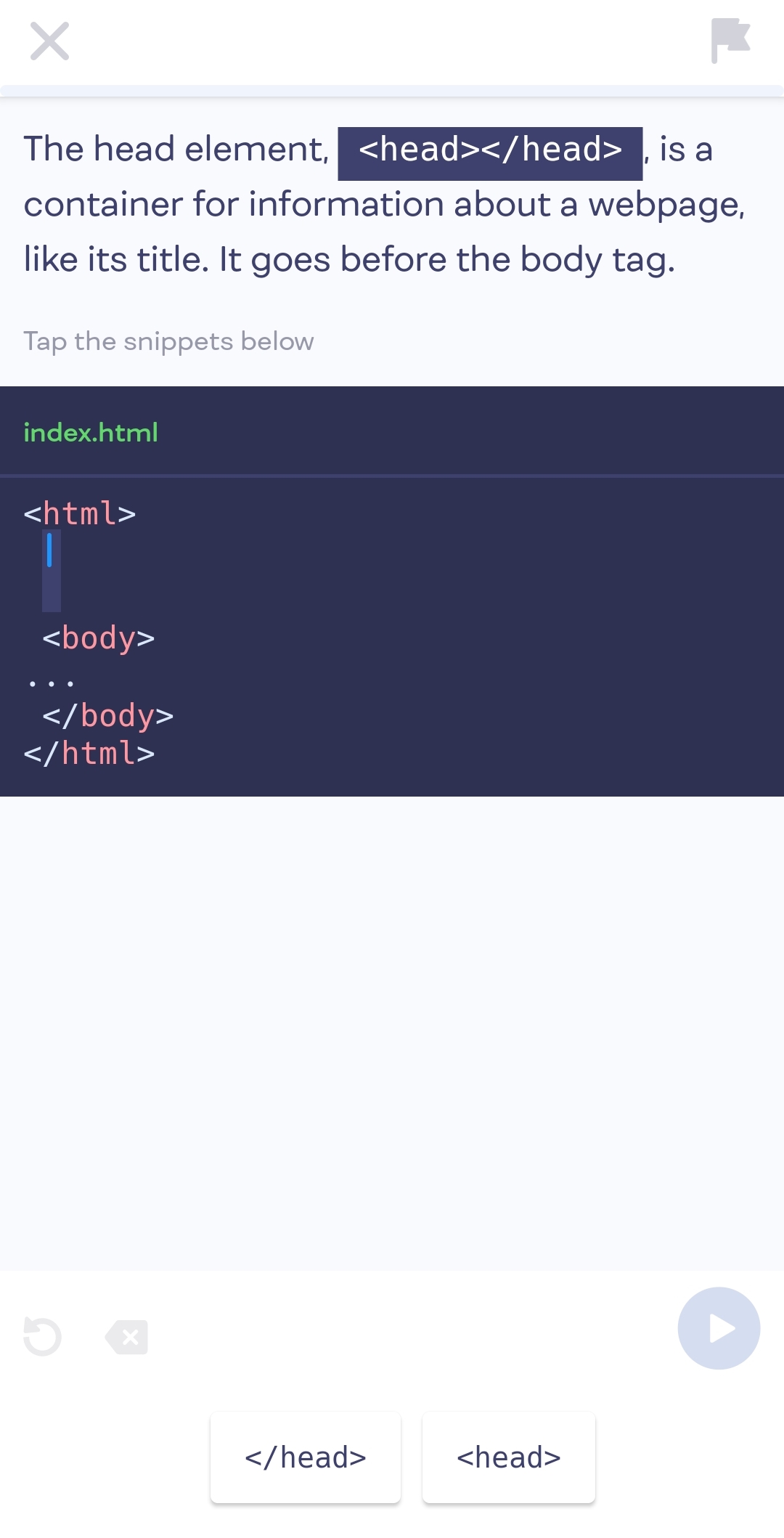
-
Type the answer that you are asked to give.
Figure 7. 2. Type of exercises 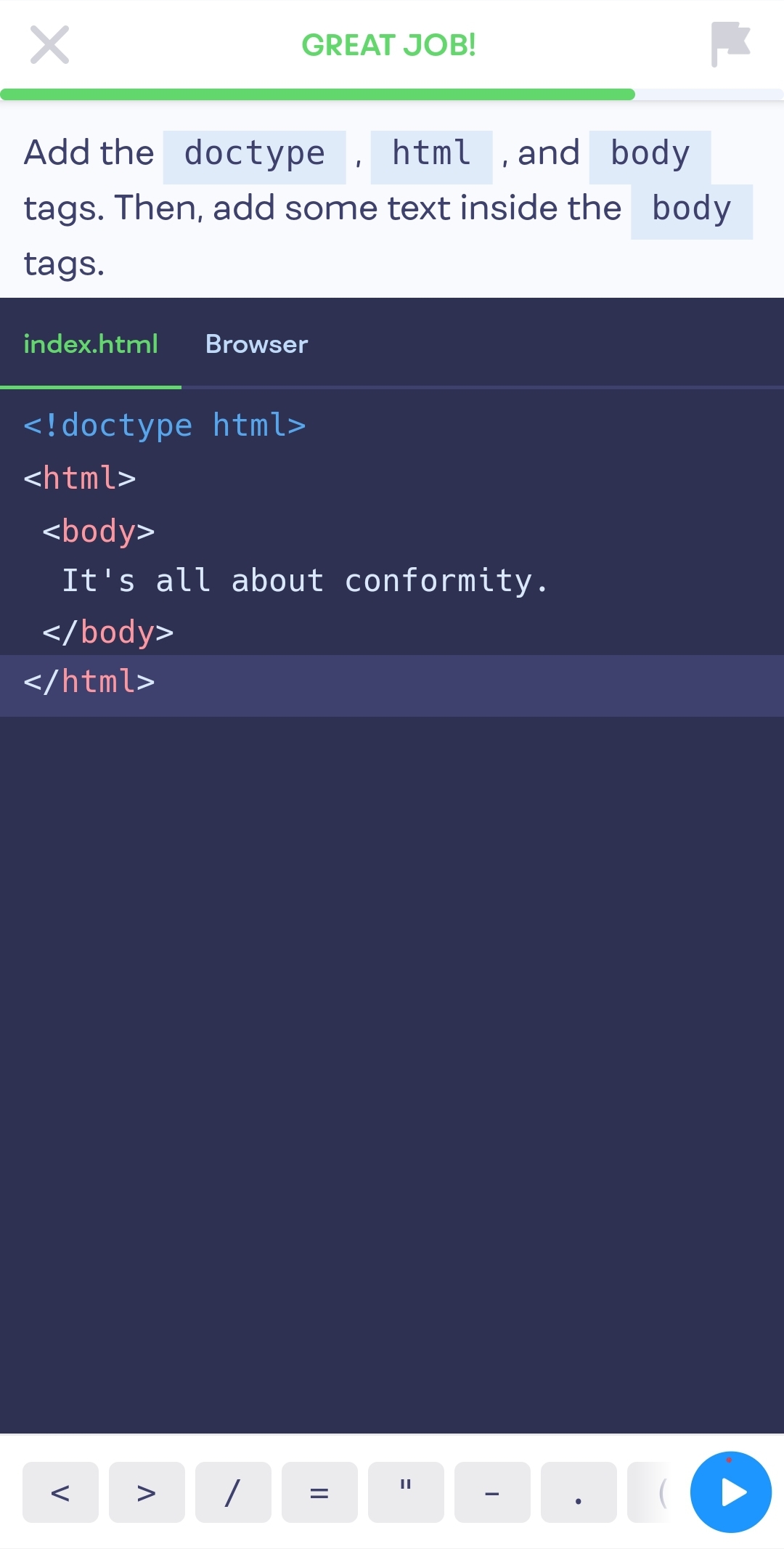
-
In this type of exercises you have to choose a correct answer from the
given options.
Figure 8. 3. Type of exercises 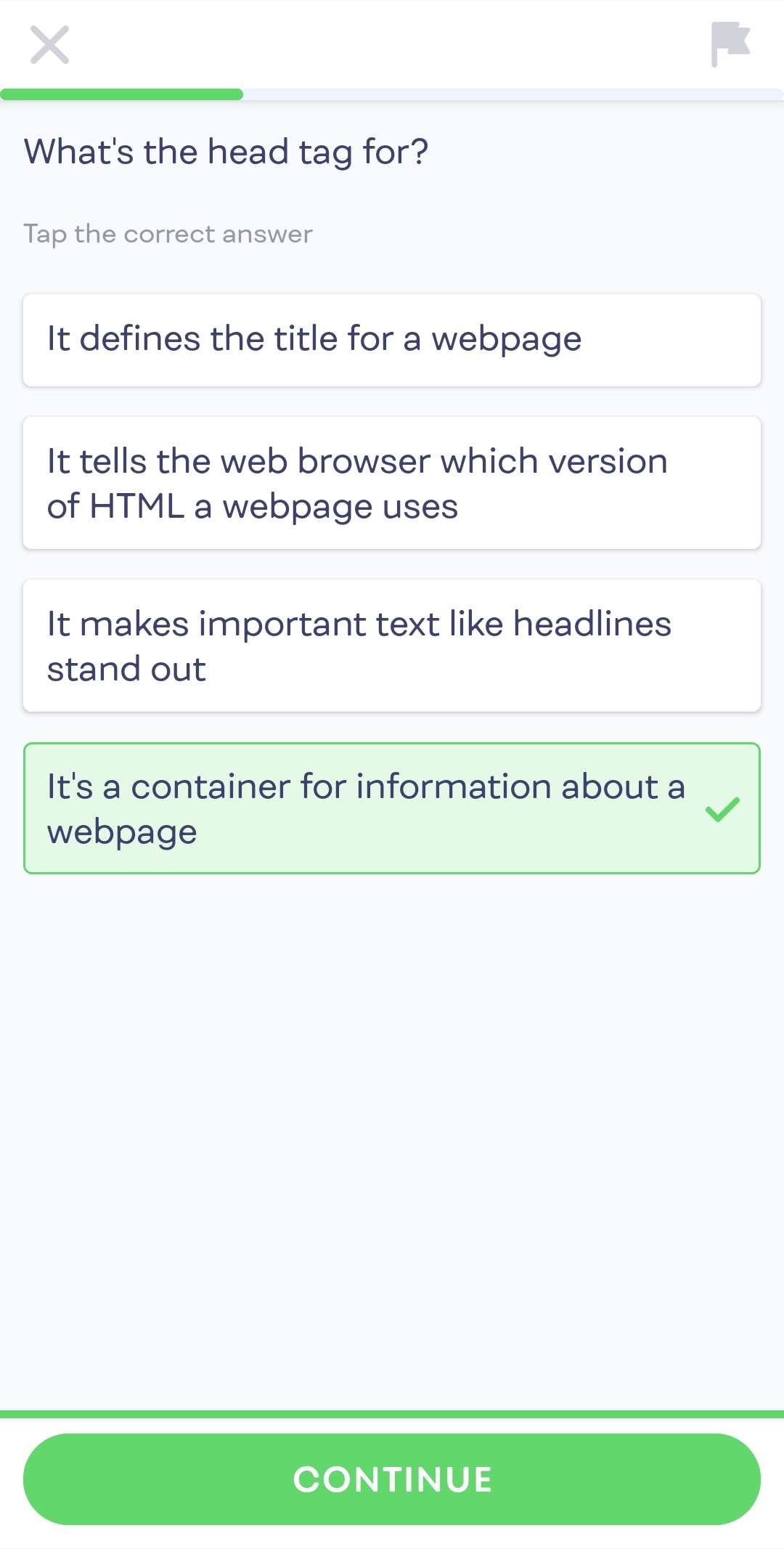
-
Choose the right elements in the right order by clicking on them.
-
Use the following buttons to navigate the task:
Figure 9. Completing the task 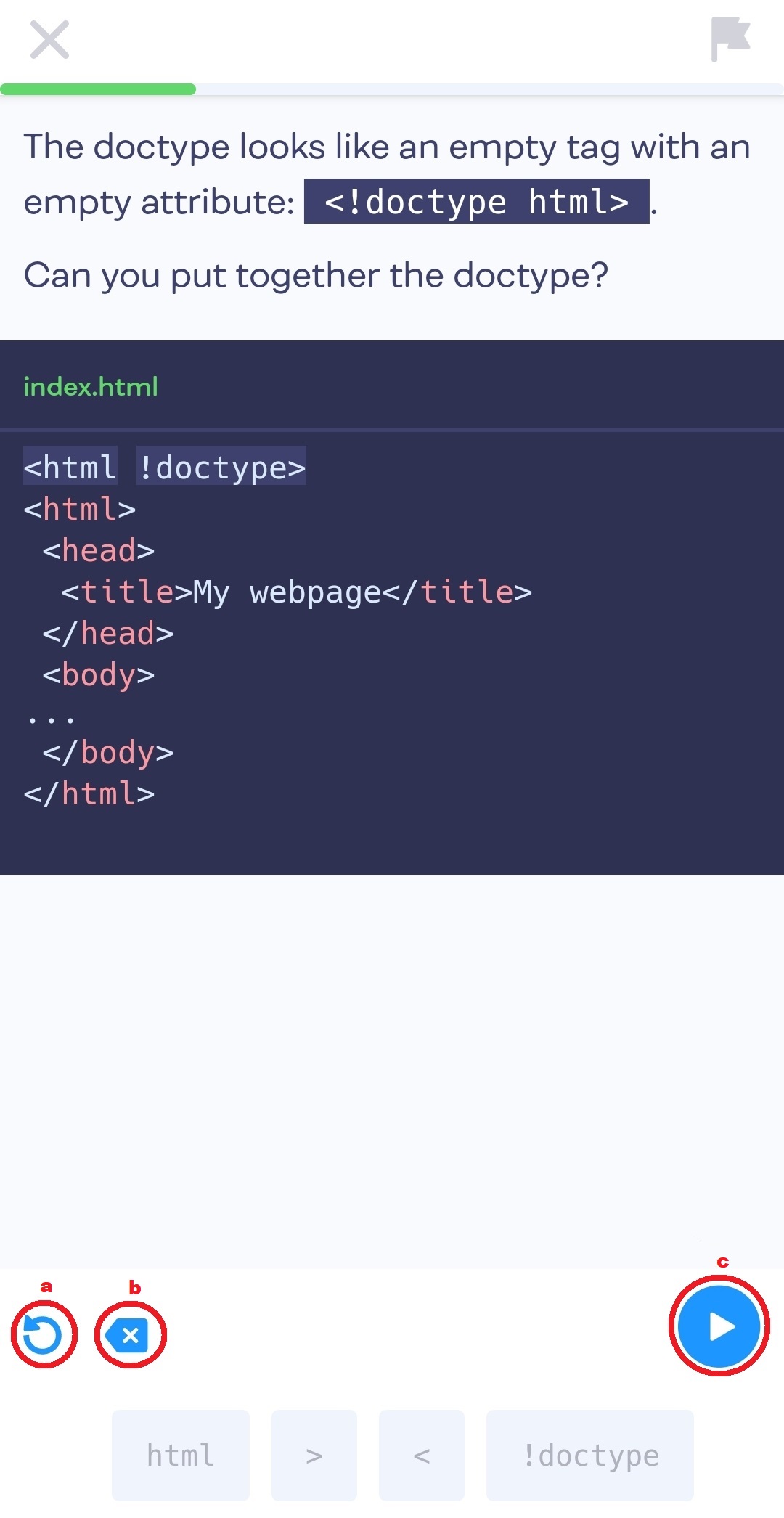
- Click on this button to completely cancel your answer.
- Click on this button to cancel only the last element of your answer.
- Click on this button to submit your answer.
-
If the answer is correct, "CONTINUE" button appears. Click on it to continue
learning.
Figure 10. Right answer 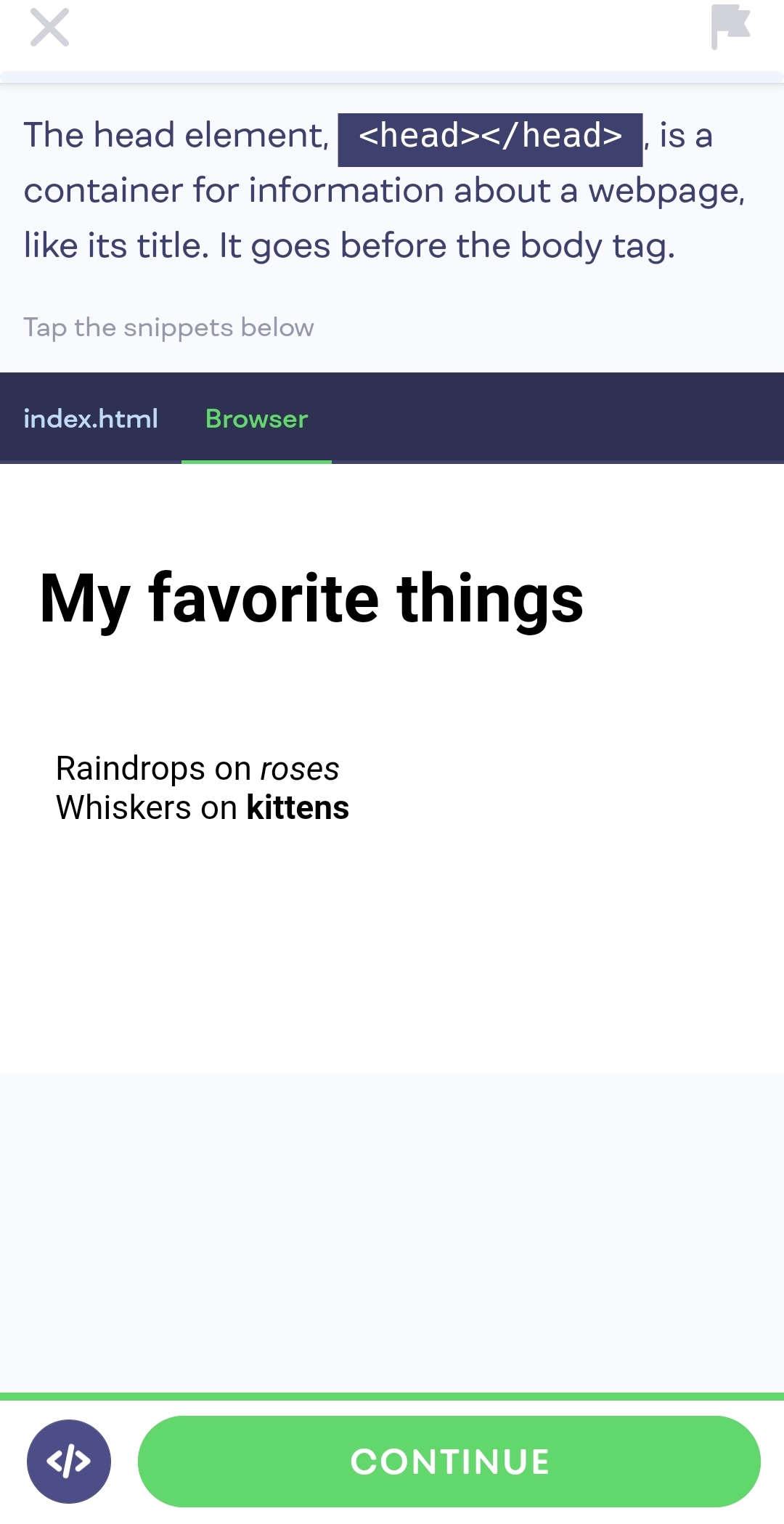
-
If the answer is wrong, "SKIP" and "TRY AGAIN" buttons appear. Click on "SKIP"
button if you want to go to another question or click on "TRY AGAIN" button if
you want to give a new answer.
Figure 11. Incorrect answer 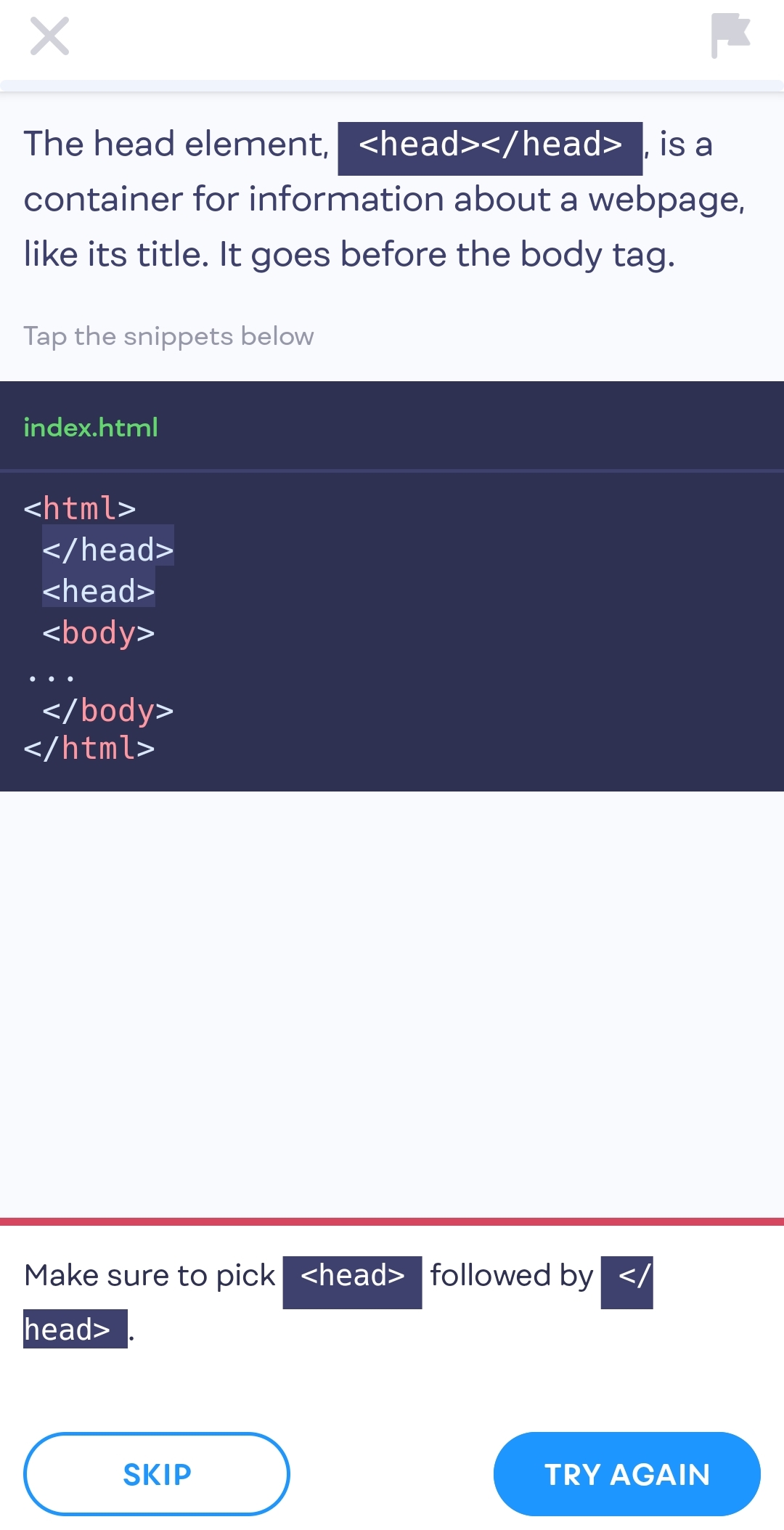
- Coding/browser view.
- After completing the lesson you receive points and coins.
-
Click on the "Glossary" button (the one with a book) to open glossary.
Figure 12. Glossary button .jpg)
-
Click on any element to see its definition.
Figure 13. Glossary